Your teacher uses LawGrader to collect your work and give you feedback on it. Here is what you do on your side, start to finish.
Joining a class
Your teacher gives you a join link. Open it and sign in, or create an account if you do not have one; the class appears at once. If your class runs inside Canvas, Moodle, Blackboard or Brightspace, you may never see a join link: the assignment is linked there, and clicking it signs you in and brings you to the right place.
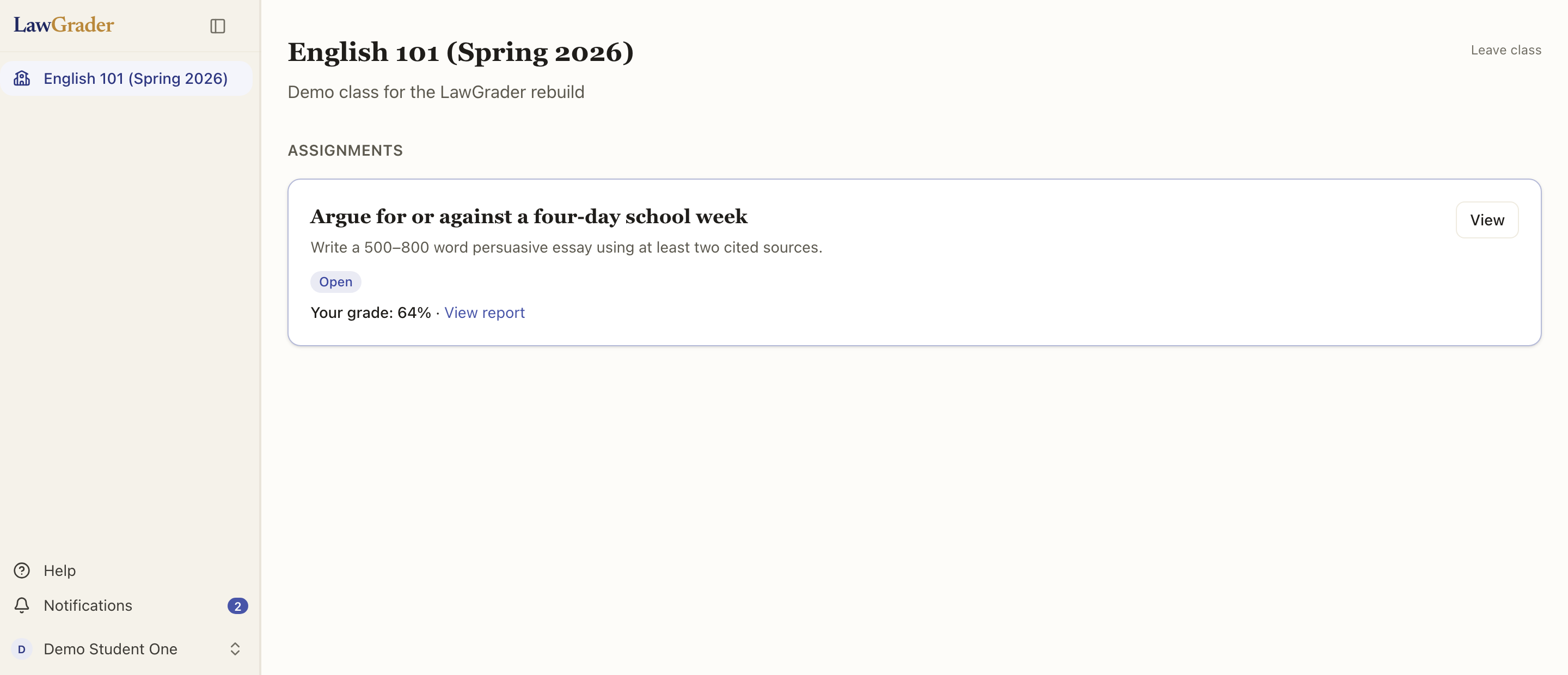
Your classes are listed in the left rail. Open one to see its assignments, each with whether it is Accepting submissions, its due date, and your grade once it has been released. Leave class in the corner removes you from a class you joined by mistake.
Opening an assignment
Open on an assignment shows the prompt your teacher wrote and any files that go with it. Assignment sheet, then Download, saves the same handout as a PDF, with the AI-use policy for this assignment stamped at the bottom. Read that policy before you start: it tells you whether and how you may use AI on this work, and your teacher chose it deliberately. The four levels are explained in Setting the AI policy on an assignment.
Handing in
Under Submit your work, drop your file onto the box or choose it. The file must be a PDF or a Word document (.docx), up to 25 MB. An older .doc should be saved as .docx first. If you select more than one file, they are combined in the order you chose them into one submission.
Your submission appears below with its word count and the time it was submitted. That is the copy your teacher grades.
Changing your mind
Until the assignment closes, Replace submission lets you hand in a new file. It replaces the earlier one entirely; there is no history of drafts, so keep your own copies. Once the assignment's window has closed, the upload is no longer offered, and only your teacher can reopen it.
What happens next
Nothing is visible to you while your teacher works. Your teacher (with help from an assistant that reads against the rubric) scores and comments on your paper, then decides when to release it. Until then the assignment simply shows your submission. When it is released, the assignment card shows Your grade with a link to the report. See Reading your feedback.
Privacy
You see only your own work and your own feedback, never another student's. Your teacher and their teaching team see your submission; the assistant that helps them reads it only to grade it. See How your students' data is handled.