Curving adjusts scores across the whole class after grading. It is a separate step from grading, and it happens before you release.
One lever, over your papers
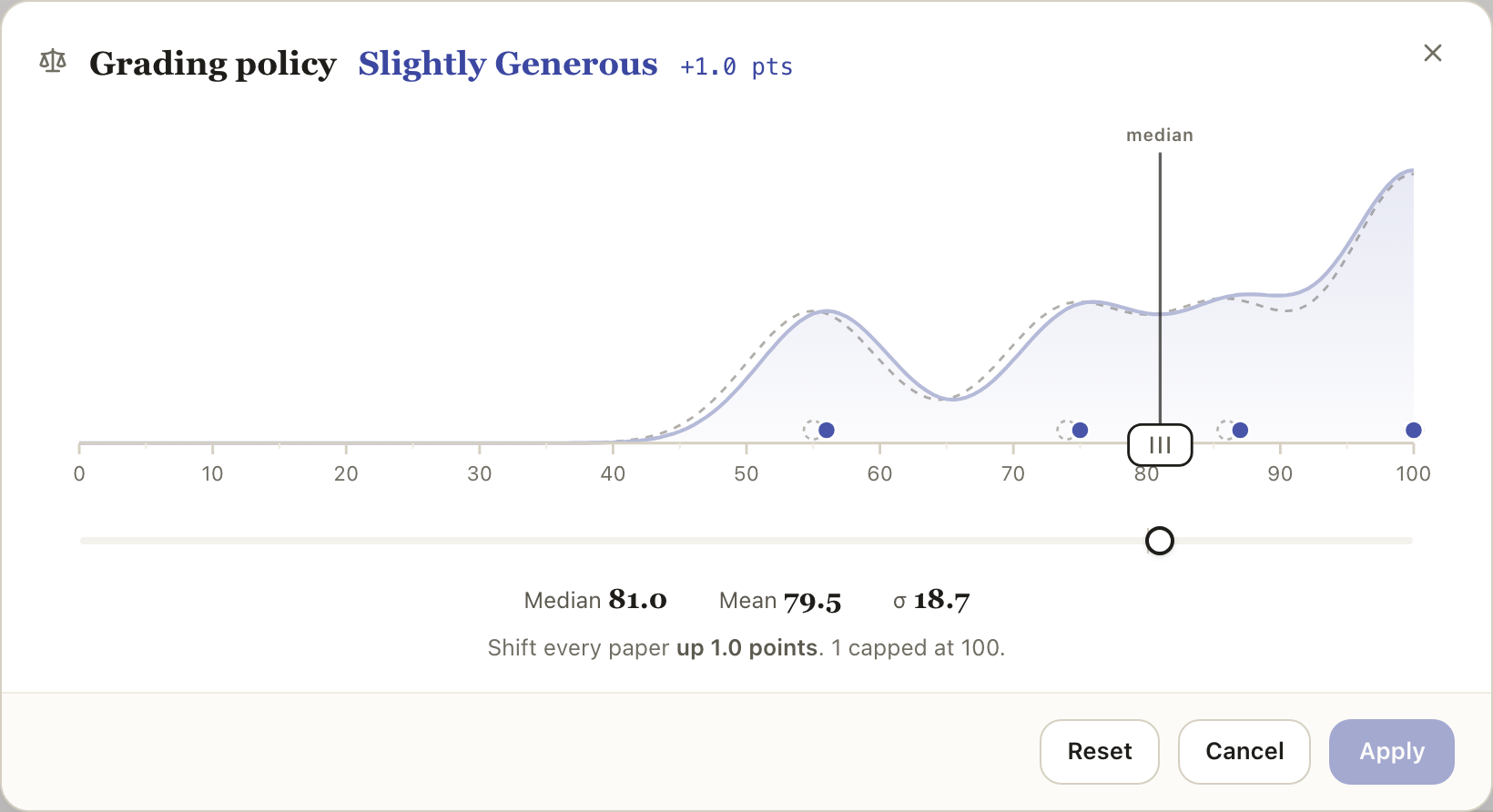
On the Grade step, the Curve control opens a dialog above the papers table. It shows where the class sits now, and it leaves most of the score column visible on purpose: the scores moving underneath is how you judge the curve.
Every paper moves by the same number of points. Rank order never changes, so the curve cannot reorder your class or move one paper past another.
Moving it
Four ways to set the same number, whichever suits you:
- Drag the papers themselves. A grip sits on the median line so you can see the picture is draggable before you touch it.
- Use the bar underneath, which shows how far you have moved the class and which way.
- Press the arrow keys for fine adjustments.
- Double click to reset to zero.
As you move, the score in every row updates live. A dotted outline stays where the class started, so you can always see what you have moved it off.
Each paper is one dot, sitting on its own score. Hover a dot to see which student it is and what they scored.
What the dialog tells you
The offset carries a plain name as well as a number, so you can tell at a glance whether it is a big move: Balanced, then Slightly Generous or Slightly Strict, up through Very Generous and Very Strict.
Scores cannot go above full marks or below zero, so a big curve can run a paper into either end. When that happens the dialog says how many papers did not move the full amount, rather than letting a boundary quietly eat part of the adjustment.
The dial reaches as far as it can usefully go for your class, which is far enough to put every paper on full marks or on zero. Past that there is nothing left to move.
Nothing saves until you apply
Drag as much as you like; the numbers on screen are a preview. Press Apply to commit, and the Curve control then carries the policy name so you can see at a glance that one is in effect. Setting the curve back to zero clears it.
Each paper keeps the score it came in with, shown as a short "was" line beneath its current score, so you can always see what the curve did.
Who can curve
The course owner and any co-teacher can set or clear the curve. A teaching assistant can see the curve that is in effect but cannot change it; the Curve control is greyed out for them.
Regrading or adding papers after curving
If you regrade a paper after curving, it rejoins the curve at its new score. A paper you add and grade after curving joins the curve too. You do not have to re-apply the curve to keep the class consistent.
Then release
Curving changes what students will see, so like everything else it only takes effect when you release. Review the curved result first, then release grades and reports as usual. See Releasing grades and reports.