Students only ever see their own work, and only once you release it. Until then, everything you do stays on your side.
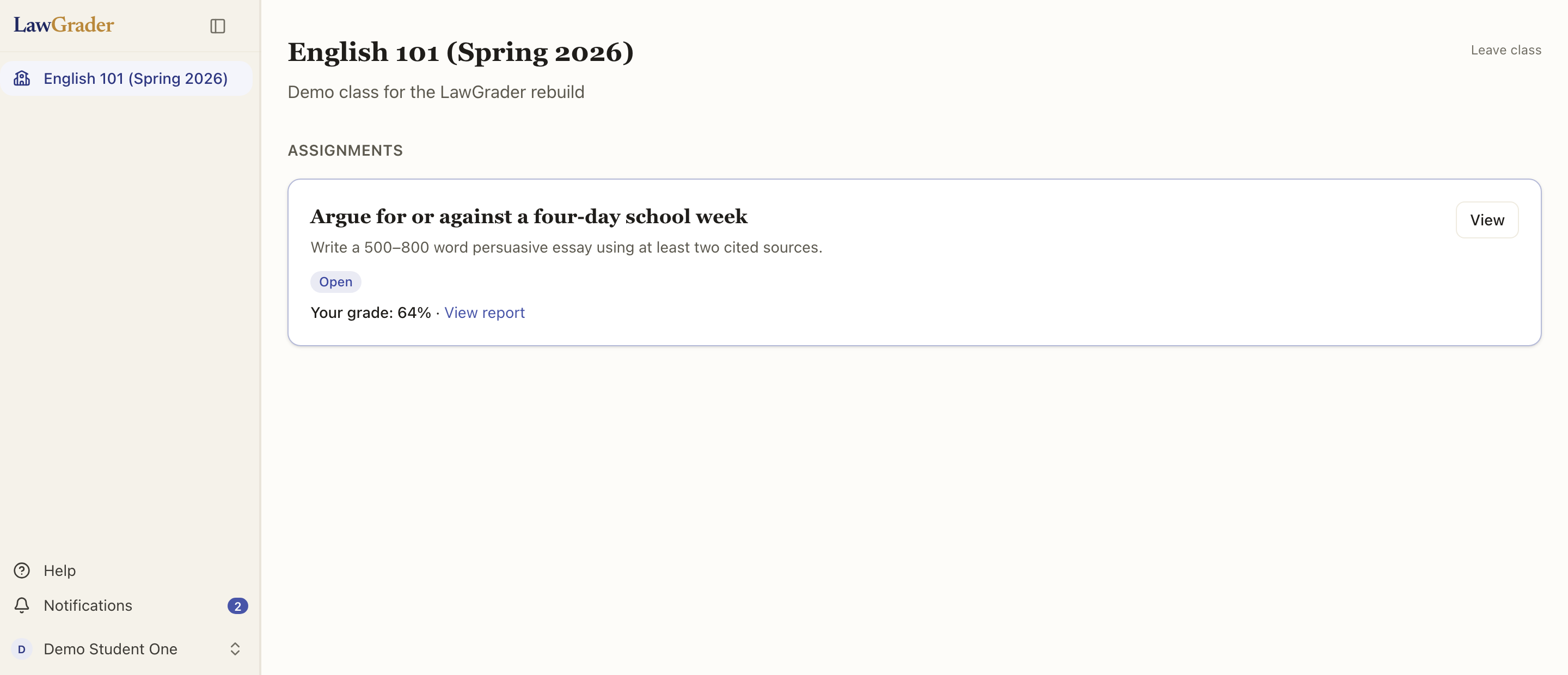
The report
When you release, each student receives a report of their submission: a cover sheet with the grade and the rubric, their annotated work with the feedback in the margins, and an optional appendix (the assignment prompt and the full grading rubric, with the level the paper received shaded in each criterion). It is the same view whether they open it in LawGrader or receive it pushed back to your LMS.
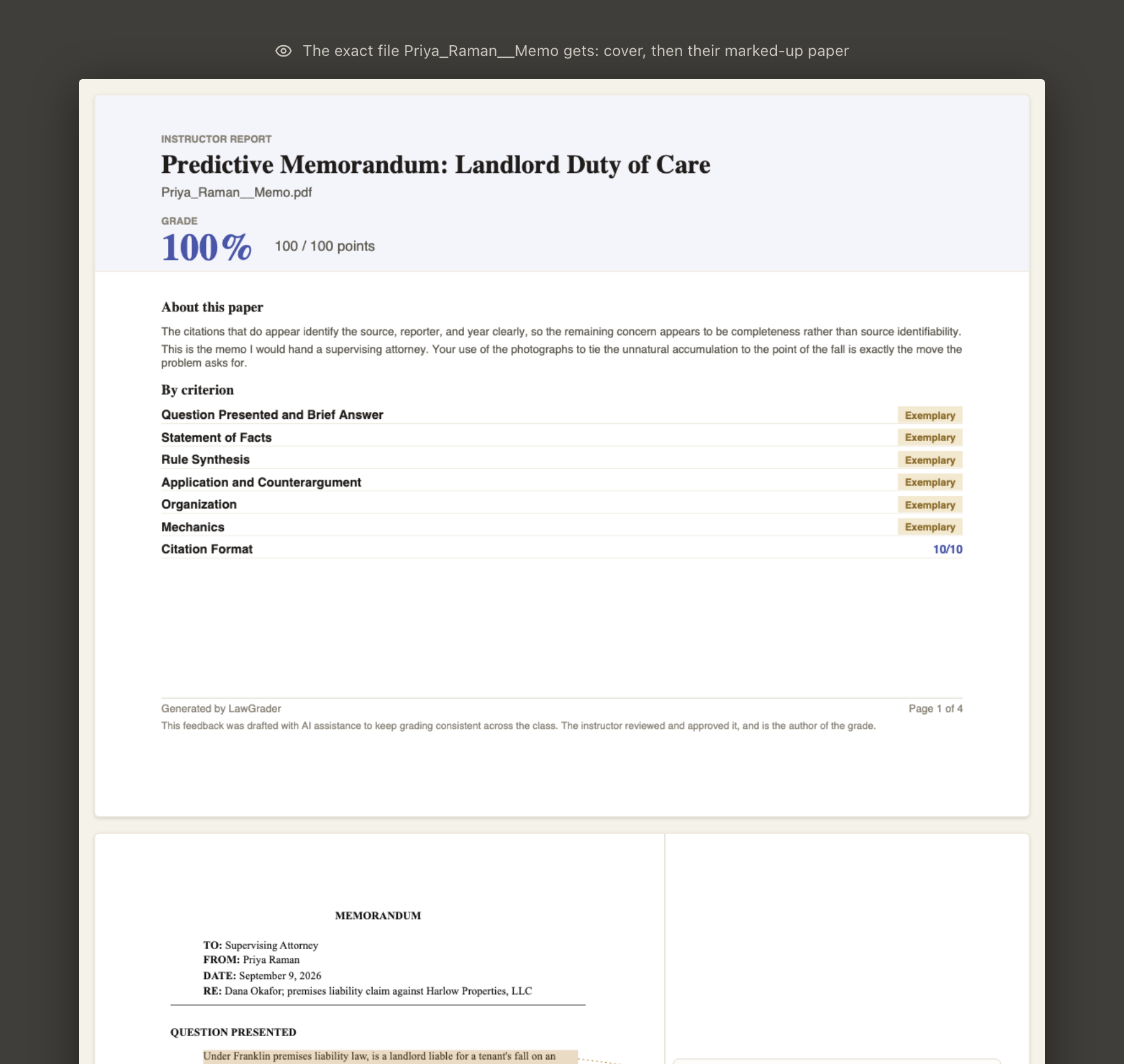
Showing how a student compares to the class
The cover sheet can also include Where you stand: each criterion drawn as the range most of the class landed in, with a marker for that student, plus the one criterion where they have the most ground to make up.
This is off unless you turn it on. Add it from the report builder, under the breakdown. It shows the shape of the class and never a rank, a percentile, or a position, so a student can see they trail on one criterion and lead on another without receiving a number to compare with a classmate.
It appears only once enough papers on the assignment are graded. Below that, a class average is too noisy to be worth showing, so the block is simply left off.
Before you release
While you are grading, nothing is visible to students, not the grade, not the comments, not a work-in-progress. That is why grading and releasing are deliberately separate steps: you decide exactly what a student sees, and when.
Previewing it
You can preview the student's view yourself before releasing, so there are no surprises. See Releasing grades and reports for the release step.