Everything you and your students put into LawGrader can come back out. The exports live on the assignment page, in the bar above the paper list, and follow whatever you are looking at.
The Export menu
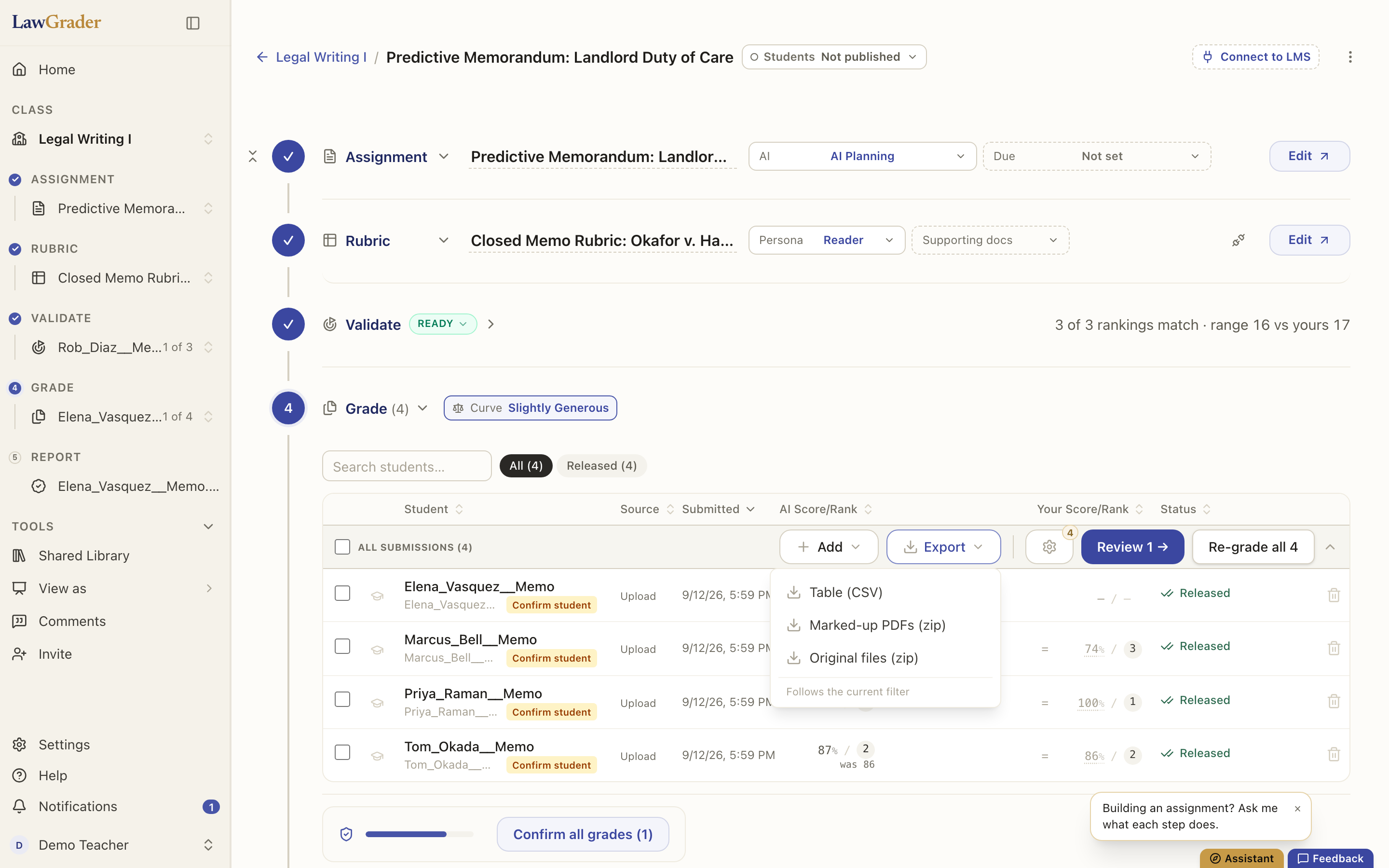
Export sits in the bar above the paper list on the Grade step, beside Add. Three choices:
- Table (CSV): one row per submission with the student, the source it arrived from, when it was submitted, its status and its overall score. Open it in a spreadsheet, or paste the score column into a grade book that has no direct connection.
- Marked-up PDFs (zip): every student's report PDF, with the cover sheet and their annotated paper, as the layout you designed. This is the file students receive, one per student, in one archive.
- Original submissions (zip): exactly what each student handed in, untouched. Word files come back as Word files.
Follows the current filter means what it says: tick some rows and the export covers those; tick none and it covers whatever the active status chip is showing (All, Ready to review, Released, and so on). The menu is disabled until at least one paper exists.
One paper at a time
On a paper's grading page, the Download marked-up document button in the toolbar saves that student's report PDF. When the student handed in Word, their own document comes back too, with your suggested rewrites as tracked changes and your released comments in Word's review pane; see Marking up a paper. Each page's comments print beside it; when a page has more than fit at a readable size, the rest print on a Page N, continued sheet right after that page, numbered to match the markers on the page.
The grade sheet and the prompt
From the assignment builder, the download button in the toolbar saves the assignment sheet: the exact handout students receive, prompt and student-visible rubric, with the header and AI-use policy stamped on it. See Building an assignment.
Sending grades somewhere else
If the class is connected to an LMS, released grades and reports go back to it without an export; see Connecting your LMS. For a grade book with no connection, the CSV is the path.
A student's own history
Students can download their released report from their own view of the assignment at any time, so a report is never only in your hands. See What students see.