Three doors, for three different needs: the Help Center you are reading, a message to a person, and a problem report that carries a picture of what went wrong. All of them are one click from any page.
The Help menu
Help in the left rail opens a small menu:
- Search the guides opens this Help Center, where the search box (Cmd K, or Ctrl K on Windows, once you are here) covers every article.
- Ask the assistant opens the page-aware assistant, which knows the screen you are on and can point at the control you are looking for. See The assistant, and talking to it.
- Contact support starts a message thread with the team. We reply in the app.
- My feedback lists the bugs and ideas you have sent and where each one stands.
Messaging the team
Support is a thread, like a message conversation. Start one with a subject and a message, and replies land in the same thread; you are notified in the app when one arrives (Replies to my messages, under Settings, then Notifications). Your open threads stay listed on the Support page, so nothing is lost if you close the tab.
The assistant can start a thread for you too: when it cannot solve something, it offers to send the team the conversation so far, and you continue with a person from there.
Reporting a problem
The Feedback button in the bottom-right corner (or Cmd Shift F, Ctrl Shift F on Windows) opens a short form on top of whatever you were doing. Choose what it is (A bug, Confusing, An idea, or Slow), describe it in a sentence or two, and Send. You can dictate the description with the microphone.
If something hangs or feels slow, choose Slow and send it right away; you do not have to write anything. A Slow report carries timings for the requests the page just made and for the page itself, so we can tell whether the delay was the page, our servers or the connection. The timings themselves never include anything you typed; the screenshot and click trail below come with every report.
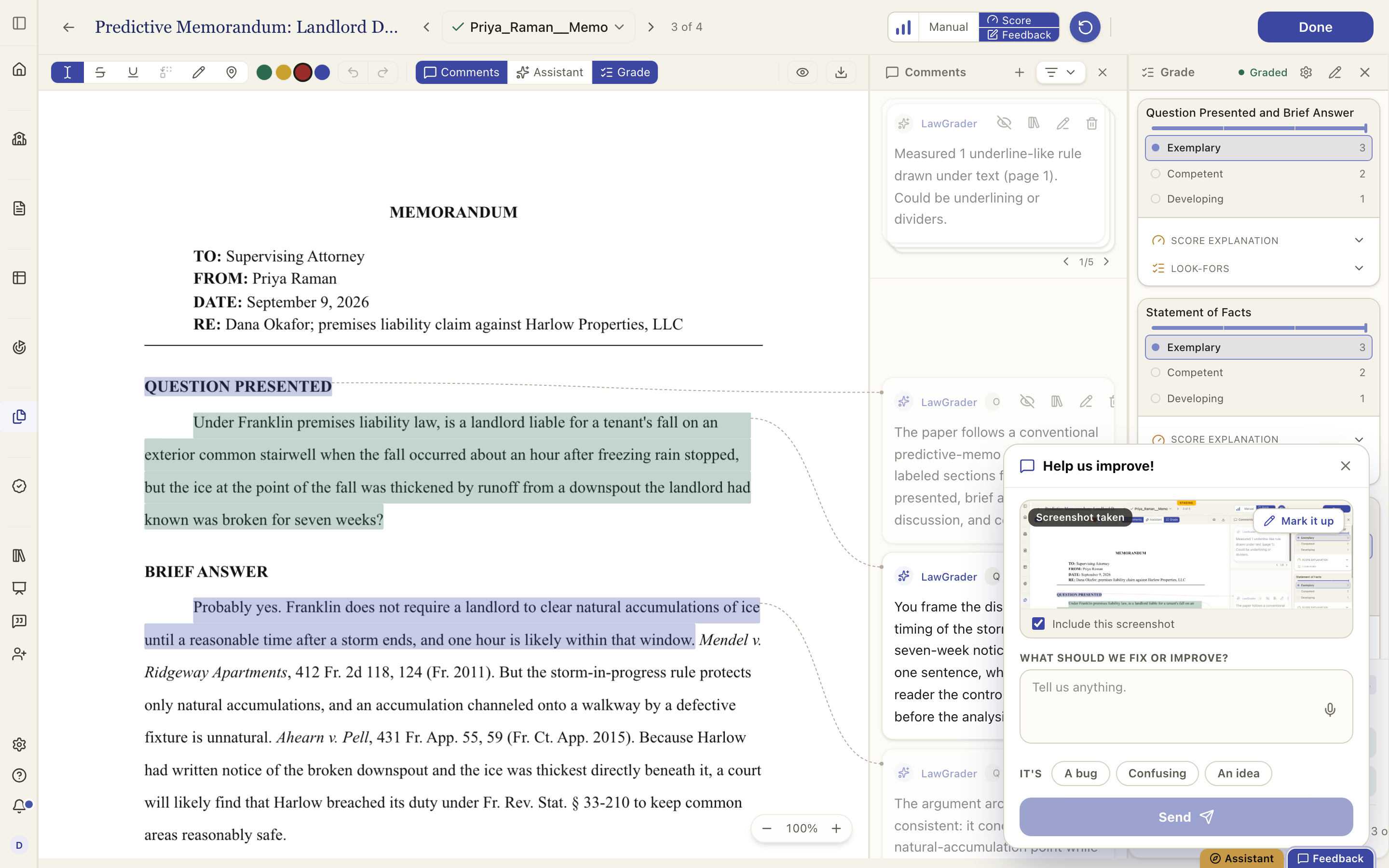
The form captures a screenshot of the page the moment you open it, and attaches a short trail of what you had just clicked. That is what makes a report reproducible instead of a guess, and it is the reason most reports get fixed. Mark it up lets you circle the part that matters and label it; untick Include this screenshot if you would rather not send the picture.
Because the picture is of the page you were on, a report sent from a page showing a student's work contains that work. We would rather say so plainly. Seven days after a report is closed the picture is deleted and the text is redacted; see How your students' data is handled.
You get a ticket number on the spot, and My feedback tracks it: open, being looked at, fixed, or closed, with any questions we asked along the way. You are notified when we need a detail (Questions about my feedback) and when it is fixed or closed (Outcomes on my feedback).
Keeping up with changes
The small version chip beside the logo at the top of the left rail opens Release notes: what shipped, newest first, in plain language. Occasional notices about the product appear as a banner at the top of the app, and can be dismissed. Neither replaces this Help Center, which describes how things work now; the notes describe what changed and when.
Which door, when
- A question about how something works: search the guides, then ask the assistant.
- Something broken, or something that surprised you: Feedback, from the page where it happened, so the screenshot shows it.
- Billing, your account, your institution, or anything you want a person to read: Contact support.