If your teaching files live in Google Drive, connect it once and every place that takes a file gains a Google Drive door. You browse Drive inside LawGrader and pick; nothing is uploaded by hand.
Connecting
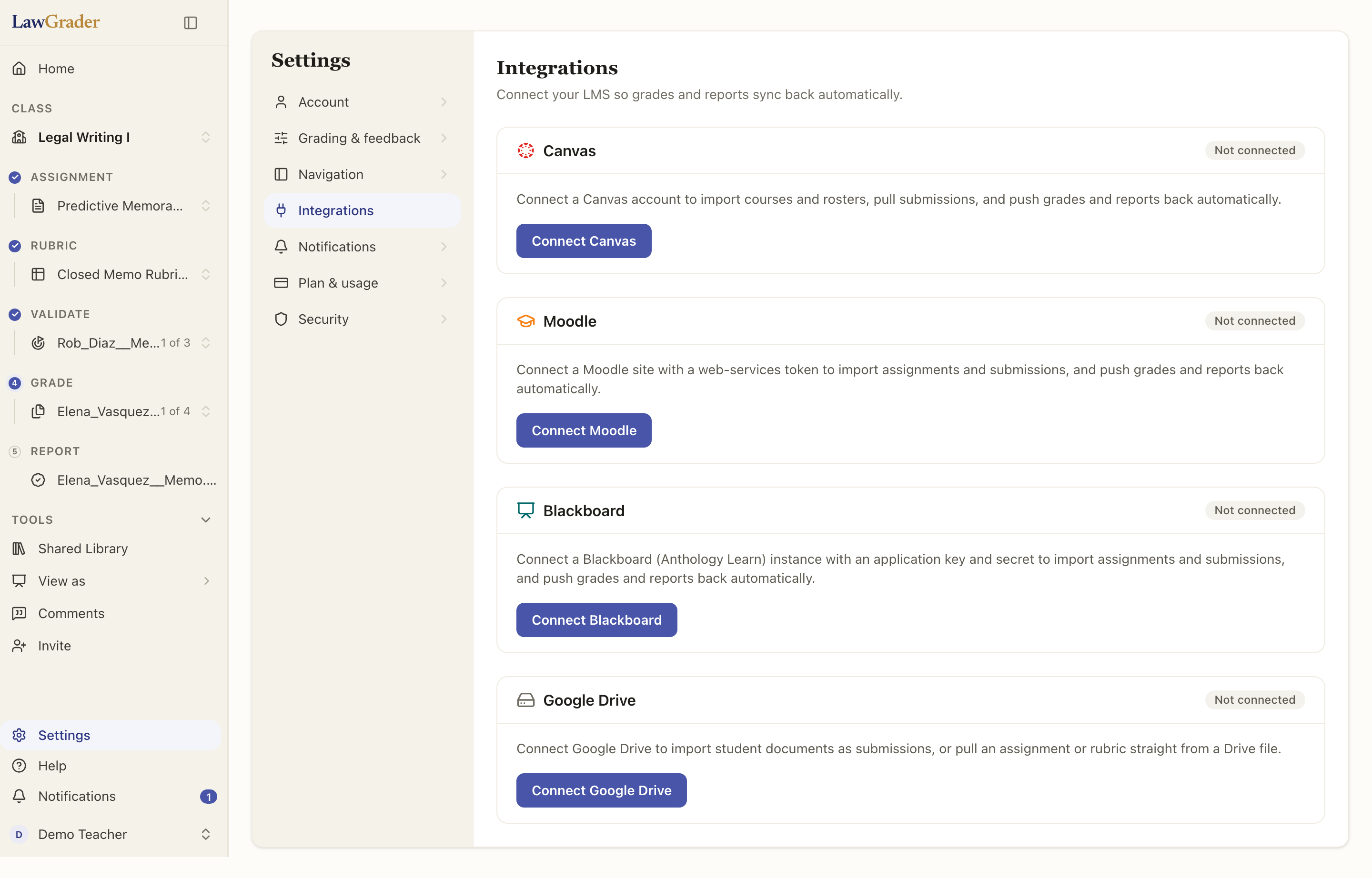
Open Settings, then Integrations, and choose Connect Google Drive. Google asks you to sign in and approve read access to your Drive. LawGrader asks for read-only access and your email address, nothing more: it can open files you point it at, and it cannot change, move or delete anything in your Drive.
Back on the Integrations page the card shows the account you connected. Disconnect removes the connection; files already imported stay where they landed.
Where the Drive door appears
Once connected, Google Drive is one of the rows behind every Import or Add button that takes a file:
- The assignment builder, to pick a Doc or PDF as the prompt. See Building an assignment.
- The rubric builder, to pick a Doc or Sheet as the rubric. See Building a rubric.
- The Validate step, to pick papers you already graded for the validation set. See Validating the grader against your grading.
- The Grade step, to pick student papers as submissions. See Uploading papers.
- Materials on the assignment (what students worked from) and references on the rubric (the standards you grade against). See Giving the grader materials and references.
If Drive is not connected yet, the row still appears and says it will take you to connect first.
The picker
It is the same dialog everywhere. Down the left are the places to look: My Drive, Shared with me, Starred, Recent, and any shared drives you belong to. Open folders by choosing them. Across the top, filter by type (PDFs, Docs, Sheets, Slides, Word) or by when the file was last modified, or search names and contents; a search runs inside This folder or across everything, and results come back by relevance rather than by name.
Some doors take exactly one file (a prompt, a rubric) and some take many (papers); the picker enforces that, and the confirm button says what will happen.
What happens to a Google Doc
A Google-native Doc, Sheet or Slides file has no bytes of its own, so LawGrader exports it as a PDF on the way in, using Google's own rendering. A PDF or Word file in Drive comes across as it is. Either way the result is treated exactly like an upload from your computer.
OneDrive and SharePoint
A OneDrive and SharePoint connection exists with the same picker and the same doors. It appears on the Integrations page only where it has been switched on for your deployment; if you do not see it, it is not available to you yet.