There are several doors into LawGrader, and which one you use depends on how your account was set up. Once you are in, everything about the account itself lives under Settings, at the bottom of the left rail.
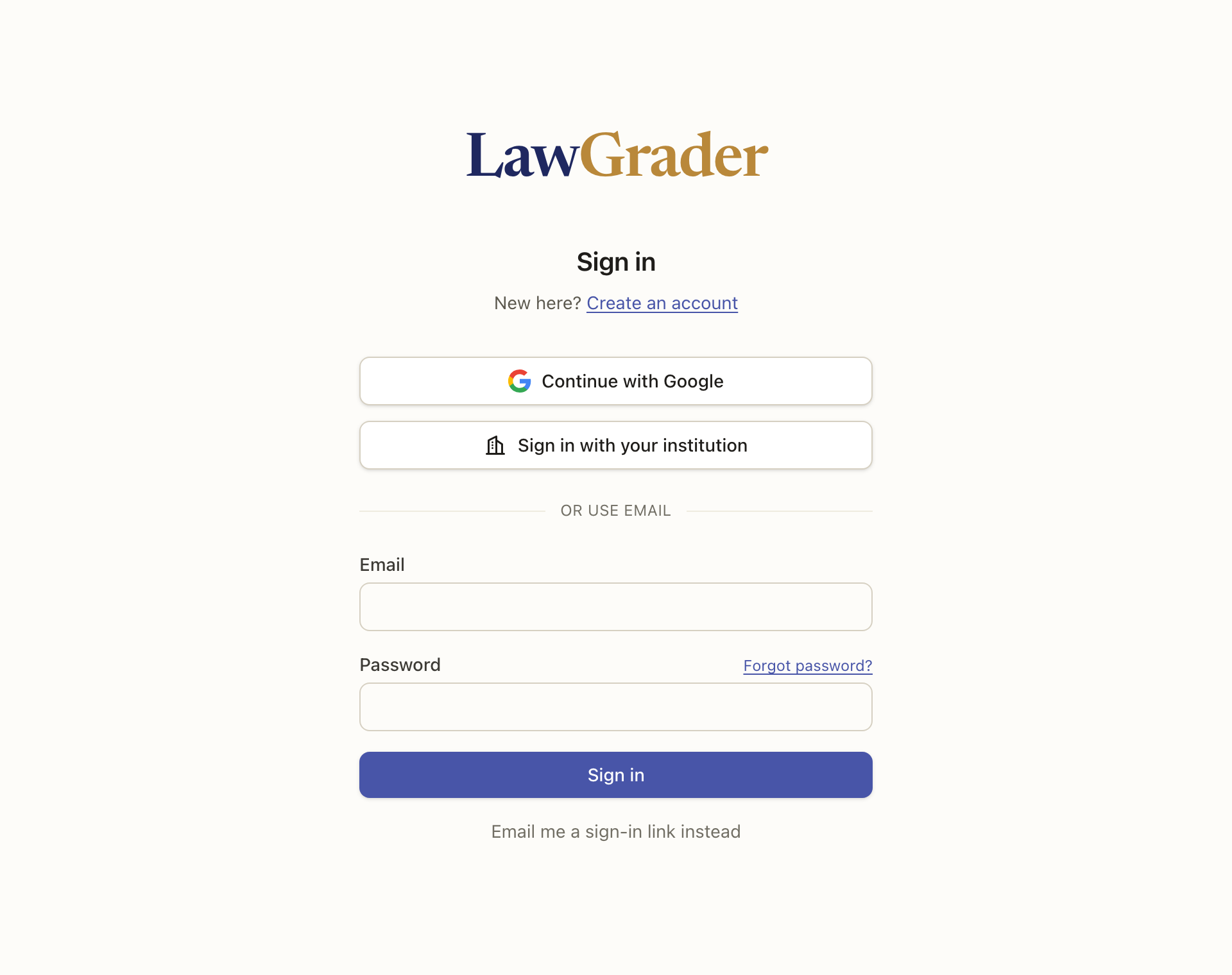
Ways to sign in
- Email and password. The default. Type both and choose Sign in.
- A sign-in link by email. Choose Email me a sign-in link instead, and a one-time link arrives in your inbox. No password needed. This is also the door students use when they arrive from a class join link.
- Continue with Google. For accounts created with a Google address.
- Continue with institutional login. When your school has set LawGrader up inside Canvas, choose Sign in with your institution, enter your school's Canvas address, and sign in there. There is no separate LawGrader password.
- From your LMS. If your administrator installed the LTI tool, clicking LawGrader inside a course signs you in on its own. See Connect LawGrader to your LMS with LTI.
A school login uses the email address on your Canvas account, so it reaches the same LawGrader account as a password sign-in with that address.
When you cannot sign in
Choose Forgot password? on the sign-in page, enter your email, and choose Send the link. The email carries a link to Set a new password; it expires after a short time, so use it when it arrives. Saving the new password signs you out on every other device.
If no email arrives, check that you typed the address your account was created with. A school-login or Google account has no LawGrader password to reset; sign in the way you signed up.
An account made with email and password has to be confirmed before it can sign in. If sign-in says Confirm your email first, choose Send the link again, then open the link in the new email. School email filters sometimes hold it in junk or quarantine, so look there too. You can also choose Use Google instead if your school email runs on Google.
Settings
Open Settings from the left rail. Each page covers one thing.
- Account. Your first and last name, phone number and institution. This page also holds Tips and hints: the small brass dot that marks a control you have not used yet. Turn Show tips and hints off to stop them everywhere, or choose Show tips again to bring back the ones you have dismissed.
- Grading & feedback. The defaults every new assignment starts from, and any assignment can override them: whether papers are graded the moment they arrive, what a released report shows, whether students see point-level deductions, how many papers you confirm yourself on Validate before bulk grading unlocks, whether the grader learns from your everyday grading, and whether the comment box suggests the rest of a comment as you type (on unless you turn it off; see Comment suggestions in your own voice). Grade Word papers in Word chooses how a Word paper opens: on, in Word, so the student gets their own file back with your comments in it; off, as pages with every tool, Pin and Draw included. It applies to papers in classes you own, and a paper you have already marked stays where you marked it. See How grading works and Validating the grader against your grading.
- Navigation. What the left rail does when a wide view opens, such as the grader or a builder: collapse to icons, stay as you set it, or hide completely. Saved on this device only.
- Integrations. Your connections to Canvas, Moodle, Blackboard and Google Drive, each with a Connect button and, once connected, a manager page. Brightspace appears here too once your institution has registered LawGrader with it. See Connecting your LMS.
- Notifications. What reaches you and where, row by row: replies to your messages, questions and outcomes on problems you reported, a finished batch grade, folders shared with you and updates to them, and account notices. Each has an in-app switch and a pop-up switch; changes save as you make them. Turning a notification off changes only whether you are told, never what happens in the app.
- Plan & usage. Your current plan, the credits remaining this period, any extra papers, and the usage ledger. See Credits and billing.
- Security. Change your password, or Sign out everywhere to end every active session for the account. Administrators also see Two-step verification: the admin console asks for a second step before it opens, either a code sent by email or a code from an authenticator app set up here. Under Advanced is Permanently delete this account, which asks you to type your email address to confirm and cannot be undone; see How your students' data is handled for what it removes.
The name on the Account page is the one students and co-teachers see, so it is worth filling in on your first visit.