Open any paper and you are on the grading page: the paper in the middle, a Comments column beside it, and the Grade rail on the right. The assistant's observations are already there if the paper has been graded. This article is about what you do on top of them.
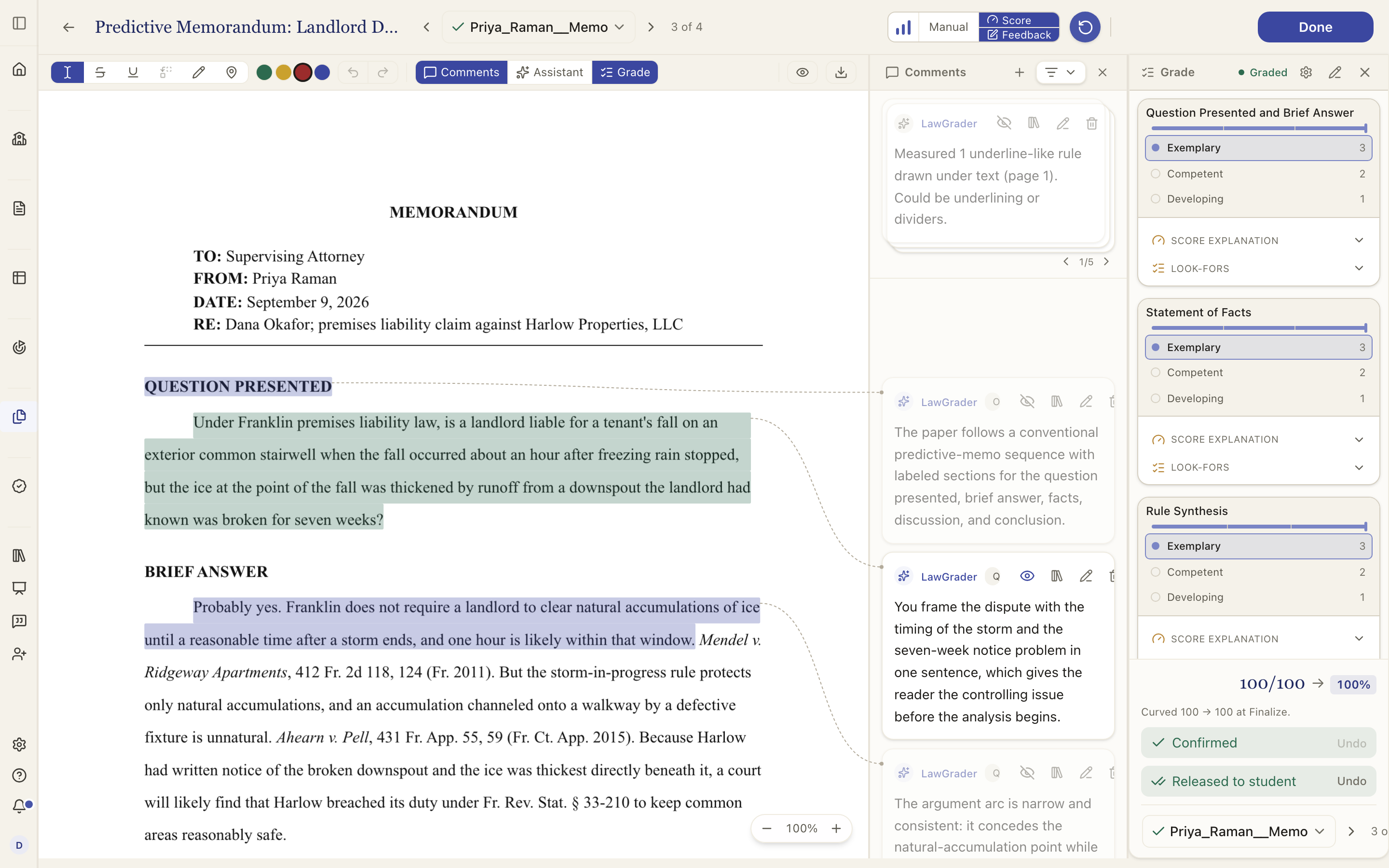
The three panels
The buttons in the middle of the toolbar toggle the panels: Comments, Assistant and Grade. Close what you are not using to give the paper the room. Prev and Next, either side of the paper's name, move to the previous and next paper on the assignment, in the order the assignment page's submissions table is sorted (click a column heading there to change it). The [ and ] keys do the same. Done returns to the assignment page. Everything saves as you work; the chip beside Done says so.
The pen tools
Down the left of the toolbar:
- Highlight (the I-beam, selected by default). Select text and a comment box opens on the passage.
- Strike draws a line through selected text. Underline draws one under it. Neither needs a comment; they are marks in the active colour.
- Suggest (a paper open in Word). Select a passage and type what it should say instead. The passage is struck through with your replacement written just above the line. See below.
- Text (a paper open as pages). Click anywhere on the page and type: your words sit on the paper itself, with no margin card. See below.
- Draw. Circle a region of the page and comment on it: a figure, a layout problem, a block of text the text layer cannot select.
- Pin. Click anywhere to drop a margin pin and comment on that spot without highlighting a paragraph. With the Pin tool armed you can drag a pin you already placed, and its line and comment follow it.
The four swatches set the colour of the next mark, and each colour is one kind of comment: Praise (green), Flag (gold, a suggestion), Deduction (red) and Neutral (blue, the default). A comment filed under a criterion starts as its colour's kind, so a red mark starts as a deduction at 0 points. Picking a colour never changes the score: only the − and + on a card take points off. The colour and the kind stay one thing. Change the kind with the buttons across the top of a card, or pick a swatch while the card is open, and the highlight, the card and any drawing change colour together. A card with points off keeps its red until you give the points back on the card. The student's report heads each comment to match its colour: Nice work, One idea, or Worth a look. A dashed outline means only you can see that comment. Zoom and pan controls sit under the page. Zooming in widens the paper beside your comments, and dragging the divider between them zooms too; Fit sizes the paper to the space again.
Your comments
A comment on a passage opens the composer. Type, or take one of the suggestions in your own voice (see Comment suggestions in your own voice), then choose Add comment. Pick a criterion and the buttons across the composer's top set what the comment counts as before you add it: Praise, a Flag, or points off with the − and +. The kind sets the card's colour and lets you filter the column later.
The + beside Whole paper notes, at the top of the Comments column, adds a whole-document comment: a note about the paper as a whole rather than one passage. It joins the stack of whole paper notes above the margin comments and prints on the cover page of the report, under Notes on the whole paper.
LawGrader pins every comment it can to the passage it is about, so its whole paper notes are only the ones with no place on the page: a property of the whole document, or something missing that has no section to point to. Papers graded before November 2026 may also carry an Overview and a Work on next card, which print at the top of the report and under the score. Edit, hide or delete them like any comment; a regrade removes them unless you edited them.
On any card, click its text to edit it. The library icon saves the wording for next time, the eye hides it from the student or shows it again, and the trash removes it (Undo brings it back). The criterion it counts toward sits at the bottom of the card; pick another and the comment moves there, its row opening in that criterion's Score explanation beside the card. Between criteria scored in points, what it takes off moves with it, so one score goes up and the other down by the same amount. A criterion scored by levels keeps its level: the comment joins it as a reason and costs nothing on its own. A criterion scored by its rules is not offered, since its rules are its ledger. In the PDF view each page's comments sit beside that page. When a page has more than fit, its comments scroll on their own: scroll with the pointer over them, and a note at the bottom says how many more there are. A long comment shows four lines until you click More.
Words that already carry a comment can take another. Drag across them and you start a new comment; a single click on a highlight opens the one already there. Where one mark sits inside a longer one, pointing at the inner words picks the inner mark.
What the student will see
Every card carries an eye. Eye open means the comment is visible to the student and will print in the margin of their report beside the passage. Eye closed means it is hidden: a note to yourself, or something you are not ready to send. Click to switch. The assistant's observations start visible by default, and you curate them down; your own comments start visible too. See Reviewing and adjusting the feedback for the whole curation pass.
A comment whose quote could not be located on the page (a scanned paper, text inside a graphic) cannot sit in the margin, so its eye turns brass and it prints as a note on the cover instead.
Suggesting a rewrite
Suggest is a comment like any other, which is the useful part: it goes in the margin list, it has an eye, and it only reaches the student when you release. The student gets it back in their own Word file as a real tracked change, with your other released comments in Word's review pane. Suggest is only on papers open in Word: a page cannot reflow around a rewrite, so on pages use Strike with a note, or write on the page with Text.
Because a rewrite is still a comment, one you have hidden does not travel. The release control on the assignment page tells you how many are being held back, and Show walks you to each one.
Writing on the page
Text puts your words straight onto the paper, like writing in the margin with a pen. Arm it, click where the words should go, and type; press Esc or click away when you are done. Click a box to change its words. While a box is open, drag it by its body or the handle at its corner to move it, drag its right edge to set the width, and use the small menu above it to change its colour, make the text smaller or larger, or delete it. Clearing all its words deletes it too.
A text box is a mark on the paper, not a comment: it has no card in the Comments column, belongs to no criterion and never changes the score. Its colour is colour-coding only, so a red box is a red note, not a deduction. It prints on the student's report exactly where you put it, once the report is released.
Undo
The undo arrow in the toolbar reverses your last edit whatever it was: a highlight, a stroke, a comment, a LawGrader observation you removed, or a score you picked on the rail. Its tooltip names what it will take back, so it never acts blind. Redo brings it forward again. The keyboard does the same: Cmd Z to undo and Shift Cmd Z to redo (Ctrl Z and Ctrl Y on Windows), on both the PDF and the Word view. While you are typing in a comment box, the keys undo your typing instead. A text box on the page is not on the undo list yet: delete one from its own menu.
Finishing a paper
When the score and the feedback are what you want, choose Confirm grade at the foot of the rail. Confirming is what makes the grade yours; releasing is a separate step, done for the whole class on the assignment page or, for one student, with Release to Canvas (or Release to student) under the confirm button. See Releasing grades and reports.