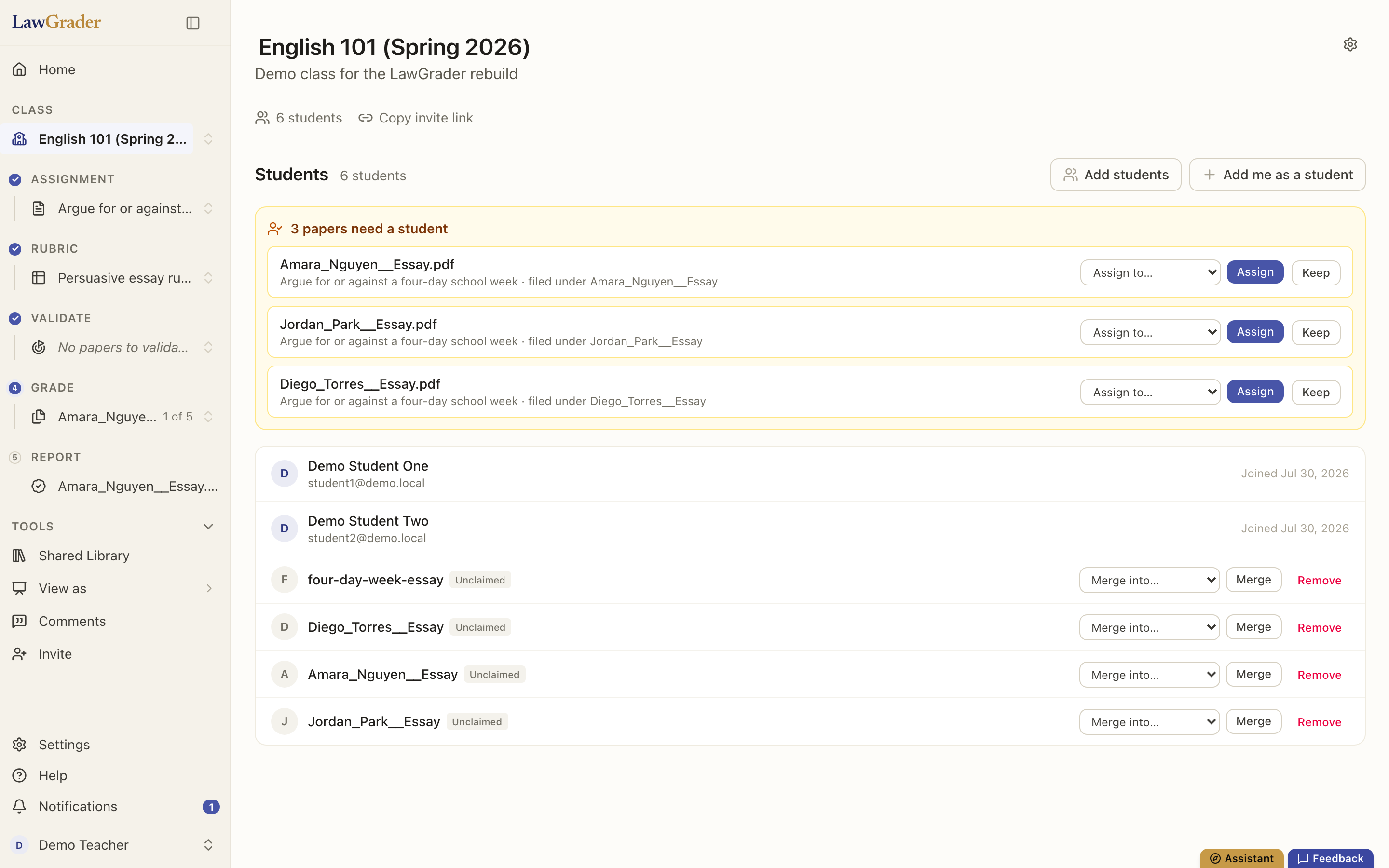
The Students tab on a class is the roster: everyone enrolled, and every paper that has not yet been matched to a real person. Most of the time you never touch it. The times you do are covered here.
How students get onto the roster
- They join with the link. Copy invite link on the class page gives you a link with the class join code. A student who opens it signs in (or signs up) and is enrolled. See Inviting students to a class.
- You paste a roster. Choose Add students and paste names or emails, one per line. A line with an email address invites a real account and that person is emailed. A name on its own becomes a placeholder student you can claim or merge later. Choose Add to roster to finish.
- They arrive with their work. Upload a stack of papers or import from your LMS and each paper is filed under a student. If no roster match is confident, LawGrader creates a placeholder from the filename and asks you to confirm.
- From a connected LMS. Import a course from Canvas, Moodle, Blackboard or Brightspace and the roster comes with it. Canvas students who have no account here yet are listed separately until they do. See Connecting your LMS.
- Add me as a student enrolls your own account, so you can submit a test paper and see the class the way students do.
Placeholder students
A placeholder is a roster entry with no account behind it. It is marked Unclaimed. Placeholders exist so a stack of uploaded papers can be graded before anyone has signed up, and they resolve in one of three ways:
- The student signs up with the join link and claims their papers.
- You merge the placeholder into a real account with Merge into… on its row, which moves every paper and grade across.
- You remove it with Remove, which deletes the placeholder and its work. This is for a duplicate or a stray upload, not for a real student.
When a paper needs a student
An amber tray at the top of the roster lists papers filed under a name LawGrader was not sure about: "3 papers need a student". On each one, either Keep the stand-in it created, or pick the right person under Assign to… and choose Assign. The same papers show a Confirm student chip in the assignment's paper list, with the same Keep and Assign choices, so you can also resolve them as you grade. Assign to… lists the students on your roster, so if it offers only a few names, import from Canvas or add students first.
A grade already given moves with the paper; nothing is re-graded.
Grading with a teaching team
Papers are not dealt out in advance. Anyone on the teaching team opens any paper, and the first mark someone makes holds it for them until they confirm the grade or step away. The assignment's Confirmed by column shows who signed each paper off and who is grading right now. See Grading with a TA or a co-teacher and Adding co-teachers and TAs.