Signing in lands you on Home: your classes in one table, and the left rail that follows you through the rest of the app.
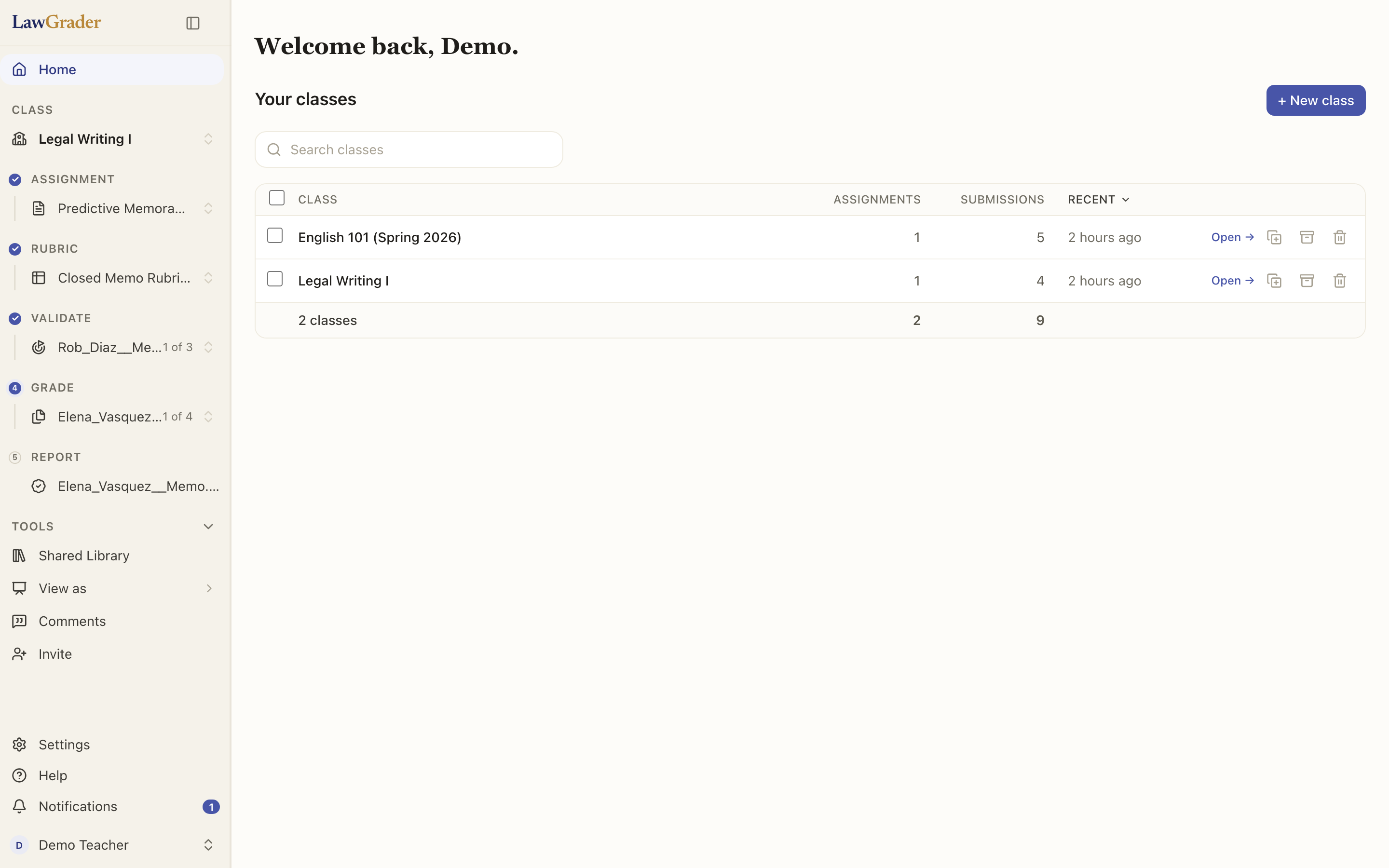
The class table
Each row is a class, with how many assignments it holds, how many submissions have come in, and when it was last worked on. Type in Search classes to filter a long list. Open takes you to the class. The icons at the end of a row:
- Duplicate copies the class into a new one: every assignment with its prompt and a fresh copy of its rubric, but no submissions, grades or roster. The copy gets its own join code and starts unpublished, so it is the fast way to set up next term's section.
- Archive removes the class from this list and keeps everything in it. Nothing is lost; the class moves to the Archived drawer below the table, and Restore brings it straight back.
- Delete asks you to type the class name to confirm, then removes the class with its assignments and submissions. It is reversible for 30 days.
Once your account is connected to Canvas, the table gains a Canvas course column. A linked class shows its course; click it to open the course in Canvas or unlink the class. An unlinked class shows Link a course. The chip at the top right of the page shows your Canvas connection.
Tick the boxes on several rows and a bar appears for archiving or deleting them together.
Archived and Recently deleted
Two drawers sit under the table when they have something in them.
- Archived holds classes you cleared from the list. They keep every assignment, submission, grade and comment for as long as your account exists. Restore one, or delete it from here without restoring it first.
- Recently deleted holds deleted classes still inside the recovery window, each with its days remaining. Restore brings the class and everything the delete took down with it back. After the window it is permanently gone, uploaded files included.
Archive is the everyday move; delete is for a class you genuinely want gone. See How your students' data is handled for what happens to files.
The left rail
The rail is the same on every page.
- Home returns here.
- Class is a switcher: the class you are working in, and a menu to jump to another.
- Assignment, Rubric, Validate, Grade, Report are the five steps of the assignment you have open, in order. Each names what is there (the assignment, the rubric, the paper you are on, "1 of 4") and the numbers fill in as you go. Choose a step to go to it.
- Library is its own row above your classes: your folders, plus whatever anyone has shared with you. See The Library: folders you share.
- Saved Comments, right under Library, is the feedback you have kept to reuse while grading. See Comment suggestions in your own voice.
- Tools holds View as student (see the app as one of your students) and Invite (bring a colleague in).
- Settings, Help and Notifications sit at the bottom, with your name under them for signing out.
The rail collapses to icons when a wide view such as the grader opens. What it does then is up to you, under Settings, then Navigation; see Signing in and your account settings.
View as a student
View as student under Tools lists the students in your classes. A paper you uploaded yourself, rather than one a student submitted, appears under its file name, marked "uploaded paper". Choose one and you become that student for a short, audited session: their classes, their assignments, their released reports, exactly as they see them. A banner stays up the whole time with a one-click exit. It is the quickest way to answer "what does my student actually see?" before you release. See What students see.
Notifications
The bell in the rail shows a count of what is new. The panel behind it lists recent notifications; clearing one there does not remove it from the Notifications page, which keeps everything, filterable by kind (replies, grading, coursework, account). What you are notified about, and whether a pop-up appears, is set under Settings, then Notifications.