Writing margin comments is the slowest part of grading, and by the end of a semester most teachers have written versions of the same note many times over. LawGrader learns from the comments you write and offers them back to you, so the second time you make a point you can accept it instead of retyping it.
Nothing here writes a comment on your behalf. Every suggestion waits in your composer until you take it, and you can edit it or ignore it.
Turning suggestions off
Suggestions are on unless you turn them off. If a suggestion appearing mid-sentence gets in the way of a comment you already have in mind, go to Settings, then Grading, and switch off Suggest the rest of a comment as you type under Writing comments. Your comment library works the same either way.
Where suggestions appear
Suggestions live in the comment composer on the grading page, the box that opens when you highlight a passage or start a whole-document comment. They stay out of the way when you are editing a comment you already posted, adopting one of the assistant's observations, or marking a passage as an AI tell.
Finishing a comment you started
Type a few words. After a short pause, the rest of the line appears in lighter type after your cursor.
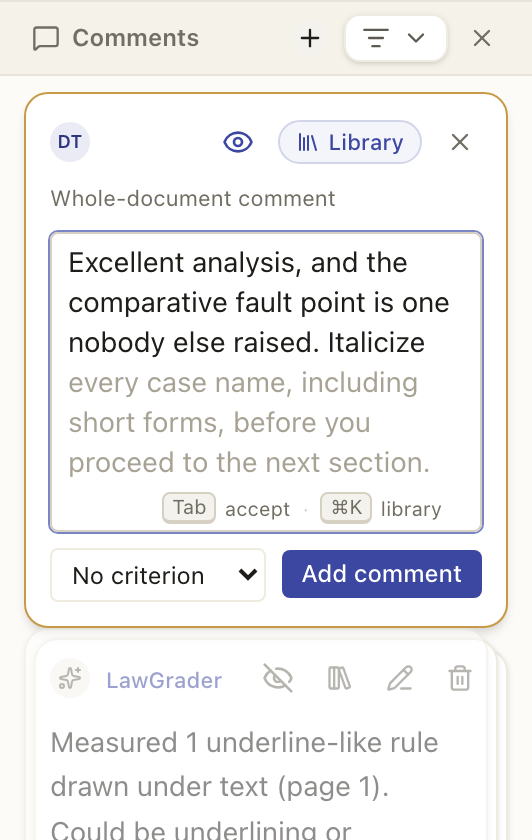
- Tab accepts it.
- Keep typing to ignore it. If you happen to type the same words it predicted, the suggestion moves along with you rather than fighting you.
- Any other key dismisses it, and so does clicking away.
Accepting is a starting point, not a commitment. The text lands in the box, and you can rewrite every word of it before you choose Add comment.
Starting from a suggestion
Highlight a passage and open the composer without typing anything, and LawGrader proposes a whole note about that passage, written the way you write. Take it with Tab, edit it, or start typing your own and the proposal steps aside.
This one is a real draft rather than a completion, so it is worth reading properly before you accept it.
Your comment library
Every suggestion draws on your comment library: everything you have written and kept, browsable from the composer with the Library pill or Cmd K (Ctrl K on Windows), and manageable as a page of its own under Saved Comments in the left rail, where you can also import the comments you wrote before LawGrader. See Your comment library.
Where the suggestions come from
From you, and only from you. The pool behind both the ghost text and the library is the comments you have written and kept, across every assignment in every class you teach. It is never pooled with other teachers, and you never see another teacher's comments.
That has one consequence worth knowing up front: a brand new account has nothing to draw on, so it stays quiet. It fills in as you grade, or faster if you import the comments you already have.
LawGrader also stays quiet whenever it has nothing useful to offer, rather than guessing. If nothing you have written resembles the note you are writing now, you simply get no suggestion.
Your voice profile
Once you have written 12 comments, LawGrader writes a short profile of how you comment: how long your notes run, how direct you are, what you tend to flag, and whether and how you praise. That profile is what makes the suggestions sound like you instead of like generic feedback.
It describes your writing, not your students'. No student work goes into it.
You can see where it stands under Settings, then Grading, in the Feedback voice section. It reads Learning until there is enough to work from, then Active. It refreshes on its own as you keep grading, with no maintenance from you.
Suggestions you accept do not teach it
A suggestion you accept without changing is deliberately kept out of the pool. If accepted suggestions fed straight back in, your voice would drift a little further toward the model's average version of itself every time, and after a few hundred comments it would sound like nobody in particular.
The moment you edit an accepted suggestion, it counts as your writing again, exactly like a comment you typed from scratch.
Staying in control
The bar for this feature is a simple one: accepting a suggestion should beat typing the note yourself. When it does not, ignore it and write your own. Nothing reaches a student until you post the comment and release the work. See Reviewing and adjusting the feedback for how your comments and the assistant's observations end up on a student report, and How LawGrader uses AI for the wider picture.