Validation is how you teach the assistant to grade like you before it grades a whole stack. It is optional, and it is one of the best ways to make the feedback feel like yours.
Add papers you have already graded
On the Validate step, add a few papers you have graded yourself:
- Upload files (PDF or Word), and the grade is read right off each paper. An unmarked paper works too, if you just want to see what the grader does.
- Google Drive or OneDrive, if your papers live there rather than on this device. Connect the account first in Settings, then browse straight to them.
- From the Grade step, when this assignment already has papers: tick the ones you want and they are held back for you to grade first. It is the same as the cap button on each row.
- From your LMS: pick from a past course on any LMS you have connected, and the grade comes across with the paper.
Papers you upload, pick from a cloud or pull from a past course are practice: they stay off the roster and the gradebook, and the upload and cloud rows say Practice only. The ones you pull from the Grade step stay real submissions.
Every one of these is offered in the same place, and in the same order: on the empty set they are laid out as cards, and once the set has papers the same list sits behind the + Add button on the Validate bar.
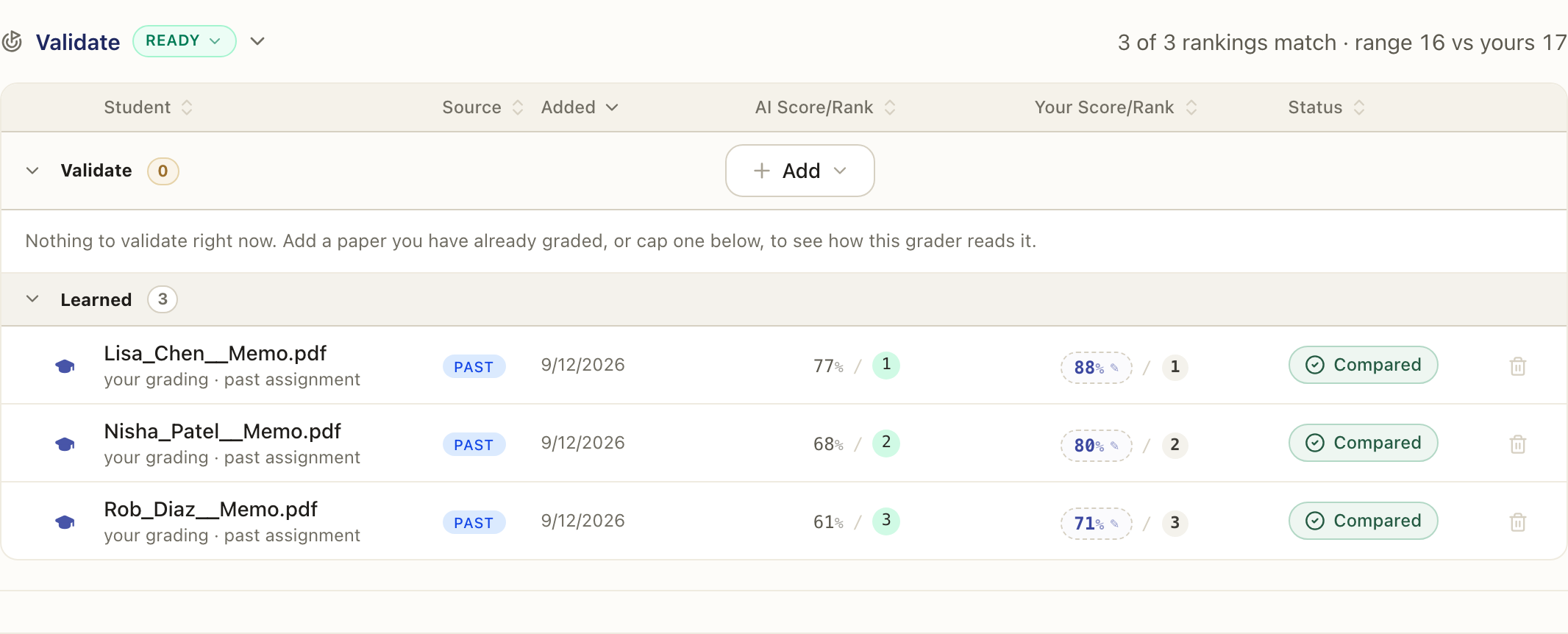
Each one lands under Validate with your grade attached. These are never on the roster and never released to students.
Picking from a past course closes the picker right away and brings the papers in behind the scenes, so you are not stuck waiting on a dialog. The Validate bar shows how many have arrived while they land, and tells you when the import is done.
You can also cap a paper from this assignment into the set, one at a time with the cap button on its row, or several at once with From the Grade step. If that paper came in from Canvas already graded, its Canvas grade comes with it, so the set knows your score without you regrading.
When the grade is not on the paper
The set can only show you how the assistant compares to you on a paper it knows your score for. When a paper has no score the app can read, its Your score cell offers a score button: type the grade it earned, out of 100 or as a fraction like 34/40, and press Enter. Use it for a paper you graded off-platform, or to correct a grade that came across wrong. Clearing the box forgets the grade again.
Once you grade a paper here yourself, your grade replaces the one it arrived with.
Run them, and let it learn
Every paper starts its run on its own the moment it lands, so you do not have to kick anything off. A paper that arrived without a grade still runs; type its score, or a rank, whenever you like, and the comparison fills in the moment both numbers exist. Each row narrates its run as it goes: Reading while the paper is parsed, Grading while it is scored, then Comparing while the result is checked against your grade. The assistant's score and rank appear when the whole run finishes, together with the Compared badge. While the row still says Comparing, the number is deliberately held back so a half-done run never reads as finished.
Compared means the assistant finished its own run on that paper. It is not the same as Learned, which is the band lower down the table and means you confirmed the paper yourself. That is the distinction the step turns on: a paper only feeds your rules once you have read it and confirmed it.
For each paper, the assistant compares its own proposal to the grade you gave, and learns from the gap. A compared paper always carries at least that first learning, the gap itself, stated plainly; a paper you ranked rather than scored carries where your rank and its own put the paper. On top of that it surfaces the patterns it finds, for example "you score Evidence lower than the model does," as proposed learned rules.
If the papers you brought were written for a different assignment than this rubric describes, the step says so rather than learning the wrong lesson. When a criterion worth real points earns almost nothing on every paper in the set, that is usually a criterion the assignment never asked for, not a class of weak writing. The Validate step line carries a caution showing how much of the rubric is affected, and the note below the table names those criteria and shows what each one scored on each paper, so you can check the pattern yourself.
Then it asks you the one question it cannot answer: did this assignment ask for them? Answer no and those criteria are held out of everything the assistant learns from this set, since a criterion your papers never attempted would otherwise teach it that you do not mark that line. Answer yes and it treats the low scores as real, because the papers were asked and missed. Until you answer either way, those criteria stay held out. You can change your answer at any time, and the question comes back on its own if you add or remove papers, since that can change which criteria are affected.
The step also stops recommending Use my range while this is unsettled, because a gap made of missing content is not a gap between your standards and its own. If the papers really were written for something else, either bring papers written for this rubric or trim the rubric to what the papers were actually asked to do.
Use my range
The finding at the top of the step reports two numbers off your own past grades: how many pairs of papers the assistant ordered the way you did, and how wide a range it used against yours. When its range is much narrower than yours, Use my range stretches its scores onto your own spread. It only shifts the level and the spread; it never reorders papers, so the ranking above it cannot change. It is a switch, on or off whenever you want, on the Validate step itself.
Open any validation paper the moment it finishes and you see everything the assistant did: its score on every criterion, its findings, and its margin observations, exactly as on a roster paper. Nothing is held back until you confirm. What it learns comes from what you change: the observations you dismiss, the reason you give when you remove one, and the criteria where your number differs from its own. Move a score off the assistant's number and a small why? appears beside the criterion; answering is optional, but a reason in your own words is the richest signal there is, and the change itself is captured either way. The learnings strip at the top of the paper updates as you work.
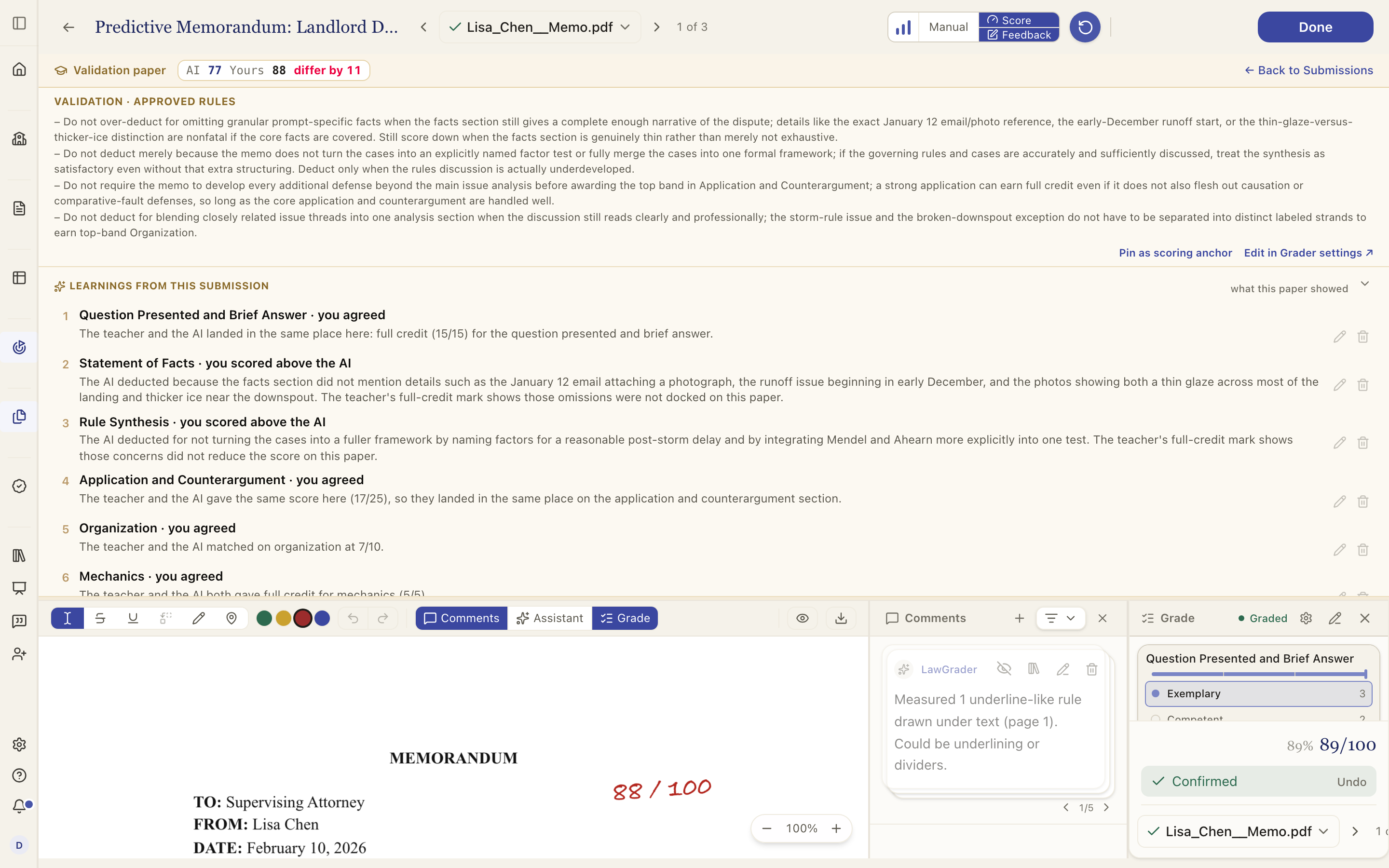
Confirming is when the learning lands. The moment you confirm, the assistant re-reads everything you did on the paper, then re-writes its proposed rules across all the papers you have confirmed so far, one paper is enough. A quiet Learning from this submission line under the Confirm button narrates the work, and the freshly proposed rules appear right there for you to approve, edit, or dismiss without leaving the page. The same rules always remain in Grader settings, under the Validation pane. From this page you can also pin the paper as a scoring anchor, so its scorecard rides along as a worked example of your scale.
Both score columns read as percentages, so the assistant's number and yours are always on the same scale. That matters most for a paper from a past course, which was graded out of a different total than this rubric. Hover either score to see the points behind it.
While a paper is being graded again, its row says Re-checking and dims the score. The number you see is from the last run and will update on its own when the new one lands.
Sometimes the assistant cannot read part of a rubric on a given paper. When that happens its score is marked partial, and hovering tells you what it was scored out of and which criteria it had to leave to you. The comparison to your grade, and everything it learns, is made on the points it could actually see.
Approve what is right
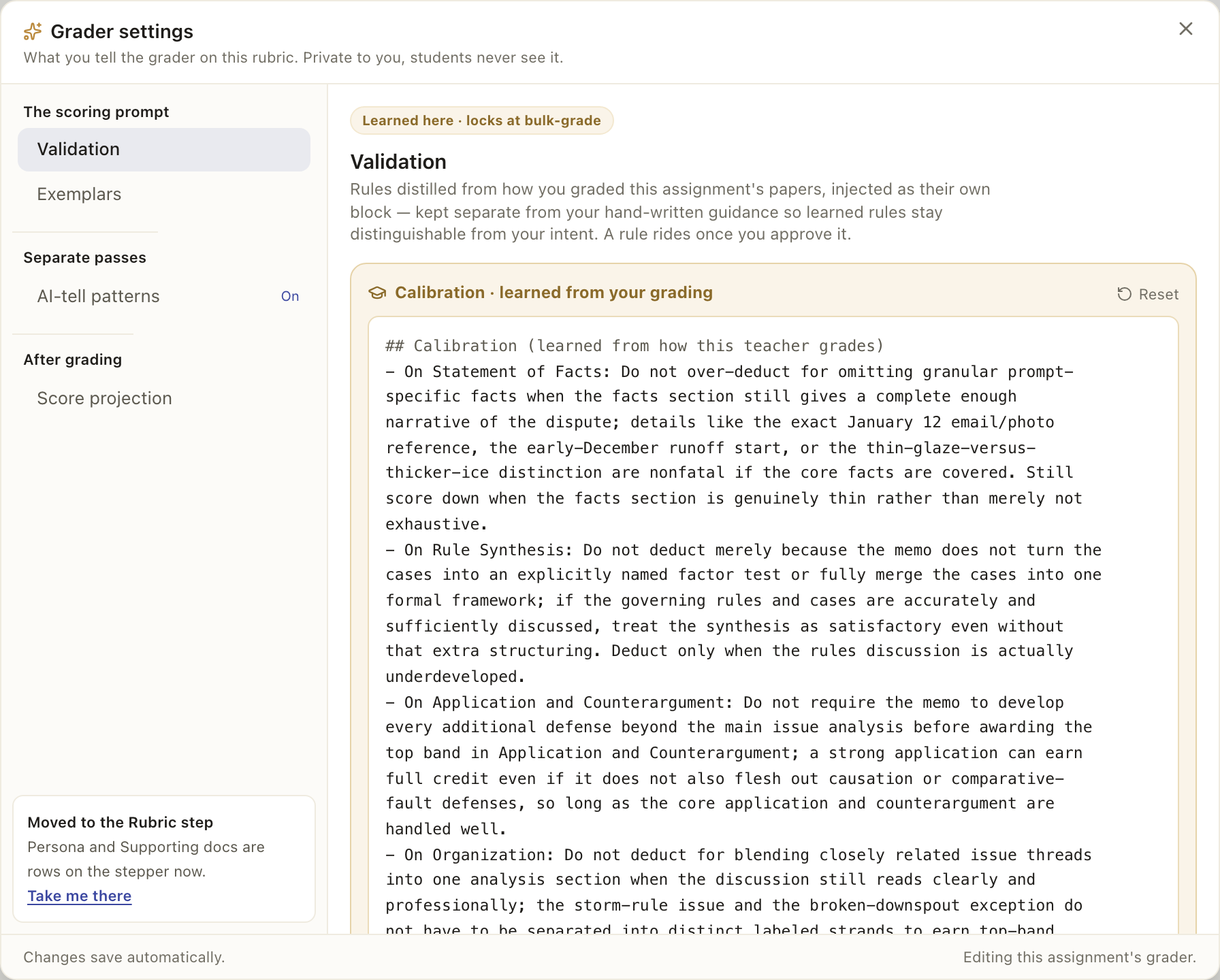
You review those proposed rules and approve the ones that match how you actually grade, right after confirming a paper or any time in Grader settings. Approved rules are injected into grading from then on, so the rest of the class lands closer to your standard. Nothing is applied until you approve it.
When you are done
Validation is optional, and there is no exit question. When you are satisfied, go to the Grade step and grade the whole class at once. The Validate step marks itself done as soon as grading starts on the class, and you can come back and add papers to it at any time.