The most important thing to know about grading in LawGrader: the assistant proposes, and you decide. A score is never final until you approve it.
What happens when you grade
When you grade a paper, the assistant reads it against your rubric and proposes a score for each criterion, with margin comments tied to specific passages and an itemized account of what each one cost. It is doing the first read, the way a teaching assistant might, so you can react to something concrete instead of starting from a blank page.
Text students were required to copy
If your assignment includes wording students must reproduce word for word (a required format, a heading block, a signature line, a template), the assistant recognizes it in the paper and treats it as yours, not theirs. It will confirm the required wording is there and correctly reproduced, and tell a student when they left a bracketed placeholder unfilled. It will not critique that wording, and it will not count it as evidence of how well the student writes. Criteria about the student's writing are judged from the student's own text.
You do not have to set this up. It comes from comparing the paper to the assignment description, so pasting the required format into the description is all it takes.
AI conversations students include
When a paper includes a chat log or screenshots of a conversation with an AI assistant, the assistant reads that part as a record of how the student worked, not as their writing. It will not mark down the grammar, wording, or layout of the AI's replies or of the student's own prompts, and it will not count them as evidence of how well the student writes. It still judges what the record shows: whether the student pushed back, revised, and made the decisions.
It finds these conversations on its own, including in screenshots. If your assignment asks for a chat log or screenshots, it also finds ones that show no chat labels at all. A writing comment it still aims at that text becomes a note for you to review, with no points taken.
How you stay in control
- AI scores are proposals. You adopt, adjust, or override any of them. Your number always wins. On a Fixed point criterion each level shows its level value (5, 4, 3, 2, 1), picking one is the whole score, and the header shows what it pays ("Good · 20/25"); there is nothing to fine-adjust, because a fixed point pays whole points. On a Ranges criterion each level shows the point range it covers, you can fine-adjust the score in its rounding step, and the highlighted level always follows the score. A range that starts with a > excludes that number: a level reading >50–75 covers everything above 50 up to 75, while 50 itself belongs to the level below, whose range ends there. On a Checklist criterion the marks are the score: each item shows what it earned of its worth, and flipping an item's mark between met, partial, and missing recomputes the sum on the spot, so there is never an unexplained fraction.
- Every comment is reviewable. Keep the ones that help, dismiss the ones that do not.
- Every deduction's cost is editable. When a finding is right but priced wrong, open the criterion's Score Explanation and click its cost: raise it, lower it, or drop it to a no-cost note without deleting the comment. The ledger shows what you changed ("was −4"), and the assistant learns from the adjustment.
- Nothing reaches a student until you release it. Grading and releasing are separate steps on purpose.
- If part of a paper could not be read, you are told, not guessed at. Some criteria are judged from the look of the page rather than the words, and occasionally that read cannot happen: a submission has no PDF, or the read simply fails. Those criteria come back unscored and the paper shows as Incomplete instead of a number, because a score covering only part of your rubric would misrepresent the work in either direction. Score the missing criteria yourself and the grade completes normally.
Turning the assistant off
You decide whether the assistant grades at all.
By default, papers are graded as they arrive. Grade papers as they arrive in Settings under Grading turns that off, and it covers every assignment. When it is off, an assignment's Grade step says so: a Grading on arrival: Off chip sits beside the step's name, and the paper list tells you how many are ready and waiting. Both link back to the setting.
Holding papers means exactly that. Nothing is sent to the AI, and nothing is billed. You can still press Grade all whenever you want, on any assignment: turning off automatic grading says "do not grade for me", not "refuse when I ask".
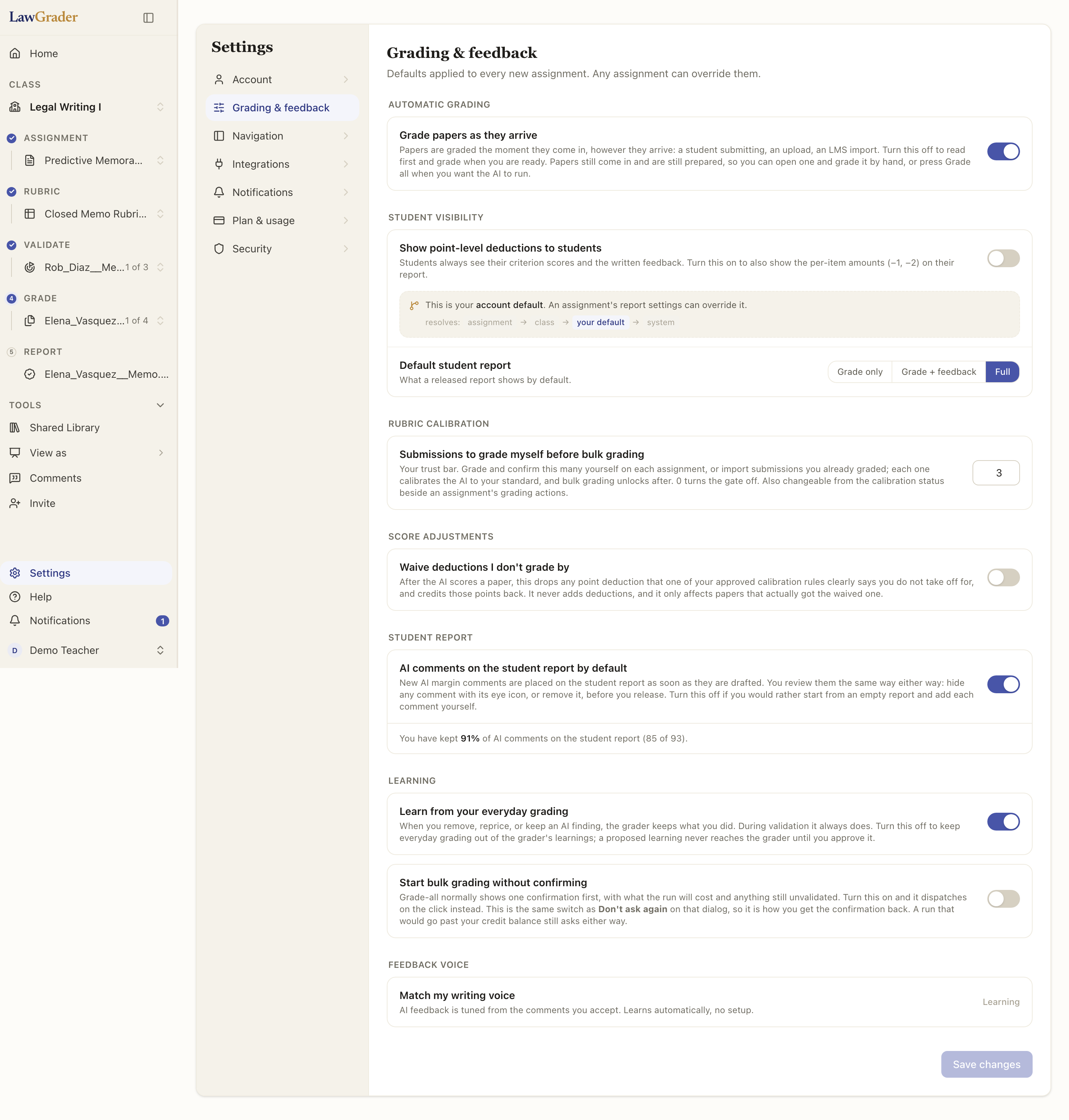
If you want one particular stack held back rather than all of them, that is what the Validate step is for: grade a few yourself first, and bulk grading unlocks once you have.
An assignment with no rubric is never graded by the assistant at all, since there is nothing to grade against.
Validation: teaching it your standards
Before you grade a whole stack, you can validate the grader on a few papers you have already graded yourself. The assistant learns from where your scores differ from its proposals, so the rest of the batch lands closer to how you actually grade. This is optional, and it is one of the best ways to make the feedback feel like yours.
Bulk grading
Once you are confident, you can grade a whole set at once and then review the results, rather than opening each paper one at a time. You still confirm before anything is released.