Papers reach an assignment three ways: students submit through the portal, you pull them from a connected LMS, or you upload them yourself. This article is about the third, and about reading the paper list once anything has arrived.
Adding papers
On the assignment page, the Grade step holds the paper list. When it is empty it offers three doors as cards: Upload files, Google Drive, and From your LMS. Once papers exist, the same three sit behind Add in the bar above the list.
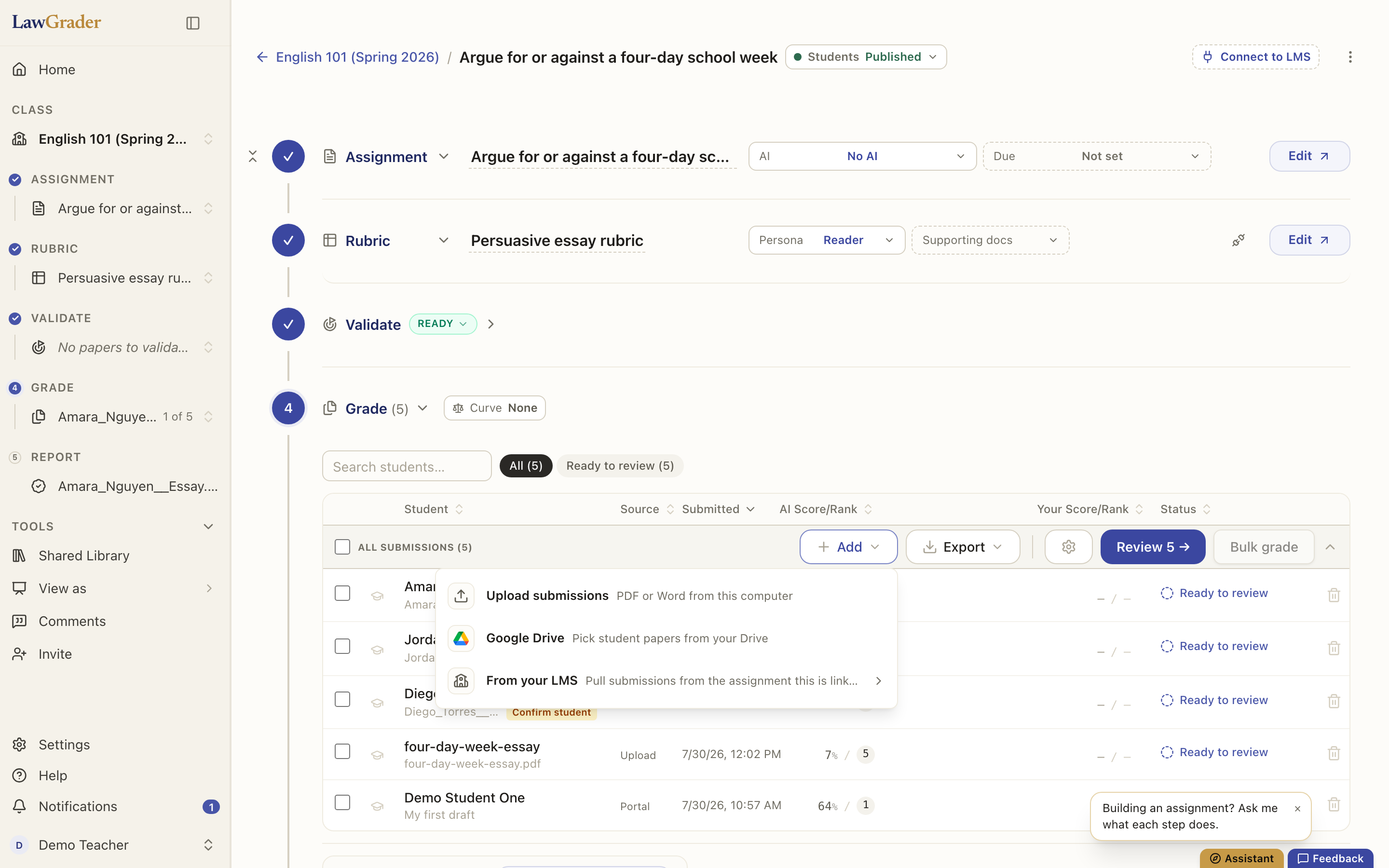
Upload files opens your file picker. Select as many files as you like in one go; each becomes its own paper. Google Drive works the same way through the picker described in Connecting Google Drive. For the LMS door, see Connecting your LMS.
Files that work
Your upload takes PDF and Word (.docx) files, any number at once. Anything else in the selection is skipped, and the dialog lists what it left out.
- PDF, including scanned or image-only PDFs.
- Word (.docx). The file is kept exactly as submitted, and LawGrader makes its own PDF copy behind the scenes, so highlights, margin comments and the marked-up report work the same as for a PDF. A student who handed in Word gets their own document back at release, with your comments in Word's review pane. An older .doc should be saved as .docx first.
Students submitting through the portal can also hand in plain text and images (a photographed page); those arrive in the same list and grade the same way. See Submitting your work.
Who each paper belongs to
An uploaded file is filed under a student by its name. Name files the way your roster spells people (Priya_Raman__Memo.pdf files under Priya Raman) and most match on their own. When LawGrader is not confident, it creates a placeholder student from the filename and marks the row Confirm student; choose Keep to accept the stand-in or Assign to pick the right person. Nothing is re-graded when you fix an attribution. See Your roster and students.
What the statuses mean
The Status column tells you where each paper is, and the chips above the list filter by it.
- Preparing: the file is being read. A long or scanned document takes longer.
- Ready to grade: read and waiting. This is the normal resting state when you hold papers for yourself rather than grading them on arrival.
- Queued, then Grading: the assistant has the paper. During a provider outage a queued paper reads Waiting for the grader instead, and picks up when service returns.
- Ready to review: graded, waiting for you to look. Open it, adjust, and confirm.
- Graded: you confirmed the grade. Released: the student has it.
- Upload failed: the file could not be read at all. Hover the row for the reason; a re-export from the original application usually fixes it.
- Failed: grading did not finish. Open the paper to retry. See When a grade needs a second try.
- Incomplete in the score column means some criteria came back unscored, usually because part of the paper could not be read; the paper will not release until you look at it.
Whether an arriving paper goes straight to grading is Grade papers as they arrive in Settings under Grading; see How grading works.
Scanned and image-only PDFs
A PDF with no text layer (a scan, or a design tool's export) is read by optical character recognition. Grading works as usual. Margin comments are placed on the page wherever the quoted words can be located in the scan; a quote inside a stylized graphic that cannot be located lands in the document-level deck and prints on the report's cover page instead. See Reviewing and adjusting the feedback.
Removing a paper
The trash icon at the end of a row removes that paper; tick several rows and Delete removes them together. A removed paper leaves the list and the grade book at once and is permanently deleted, file included, after 30 days. There is no restore button for a single paper, so if one was removed by mistake, message support inside that window. See How your students' data is handled.