Most teachers write versions of the same twenty notes all term. LawGrader keeps every comment you write in a library, so the second time you need one it is a keystroke away, and the ones you use most shape how the assistant writes in your voice.
Inserting a comment while you grade
Open a comment composer on a paper (select a passage, or + for a whole-document note) and choose the library icon in its header, or press Cmd K (Ctrl K on Windows). Your library opens as one searchable list over the paper. The same icon sits on a comment you are editing, so you can swap one in there too.
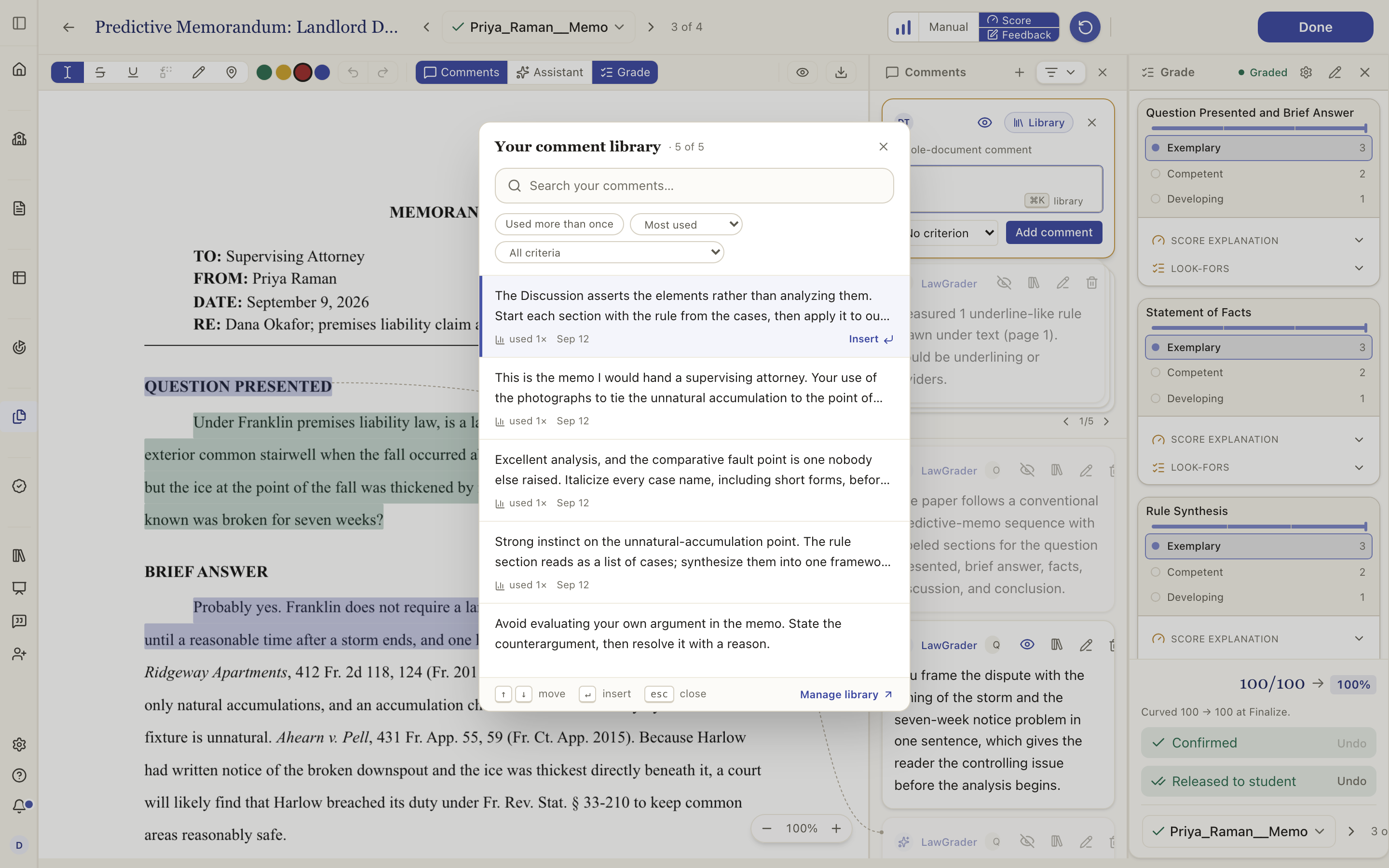
- Type to search. The list narrows as you go.
- Used more than once hides one-off notes; a three-word jot is faster to type than to find. Clear it to see everything.
- All criteria filters to comments filed under one rubric criterion.
- Sort by Most used, Recently used, Recently added or Most reworded.
- Move with the arrow keys and press Enter, or choose Insert, to drop a comment into the composer. Esc closes the picker.
Inserting does not post anything. The text lands in the box, and you edit and choose Add comment as usual. The ghost-text completions that appear as you type come from the same library; see Comment suggestions in your own voice.
The library page
Saved Comments, right under Library in the left rail, opens the library itself. On a comment you have already kept, the library icon opens it too.
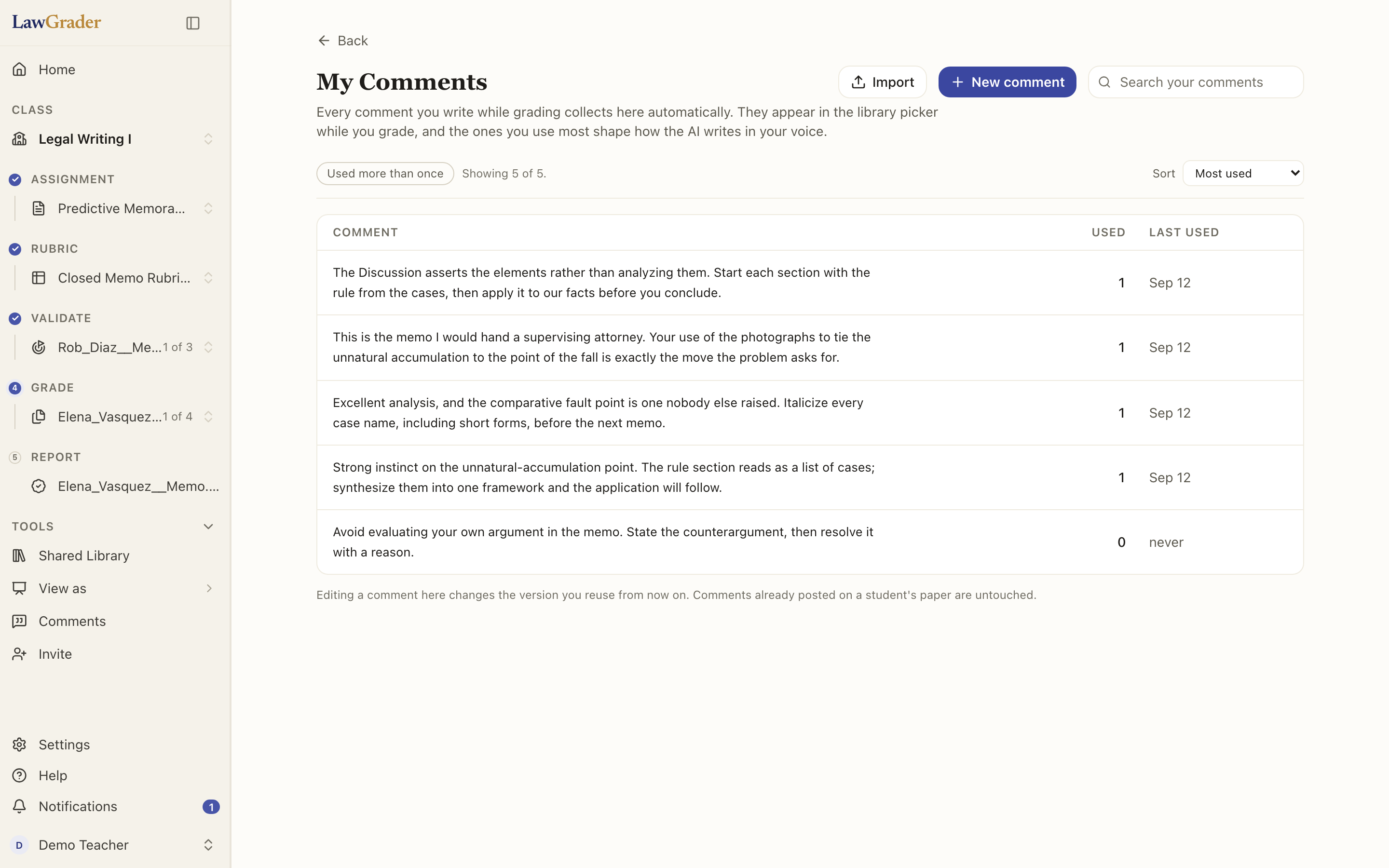
Each row is a comment with how many times you have used it and when. Sort the same four ways as the picker. Edit a comment here and the version you reuse from now on changes; comments already posted on a student's paper are untouched. New comment adds one by hand, for a note you know you will want before you have written it on a paper. A comment that started as an AI suggestion you accepted is marked, along with how much of it you kept, so you can see which suggestions you actually rewrite.
Bringing in comments you already have
Import on the library page adds comments from before LawGrader. Nothing is saved until you review it, and your wording is never changed.
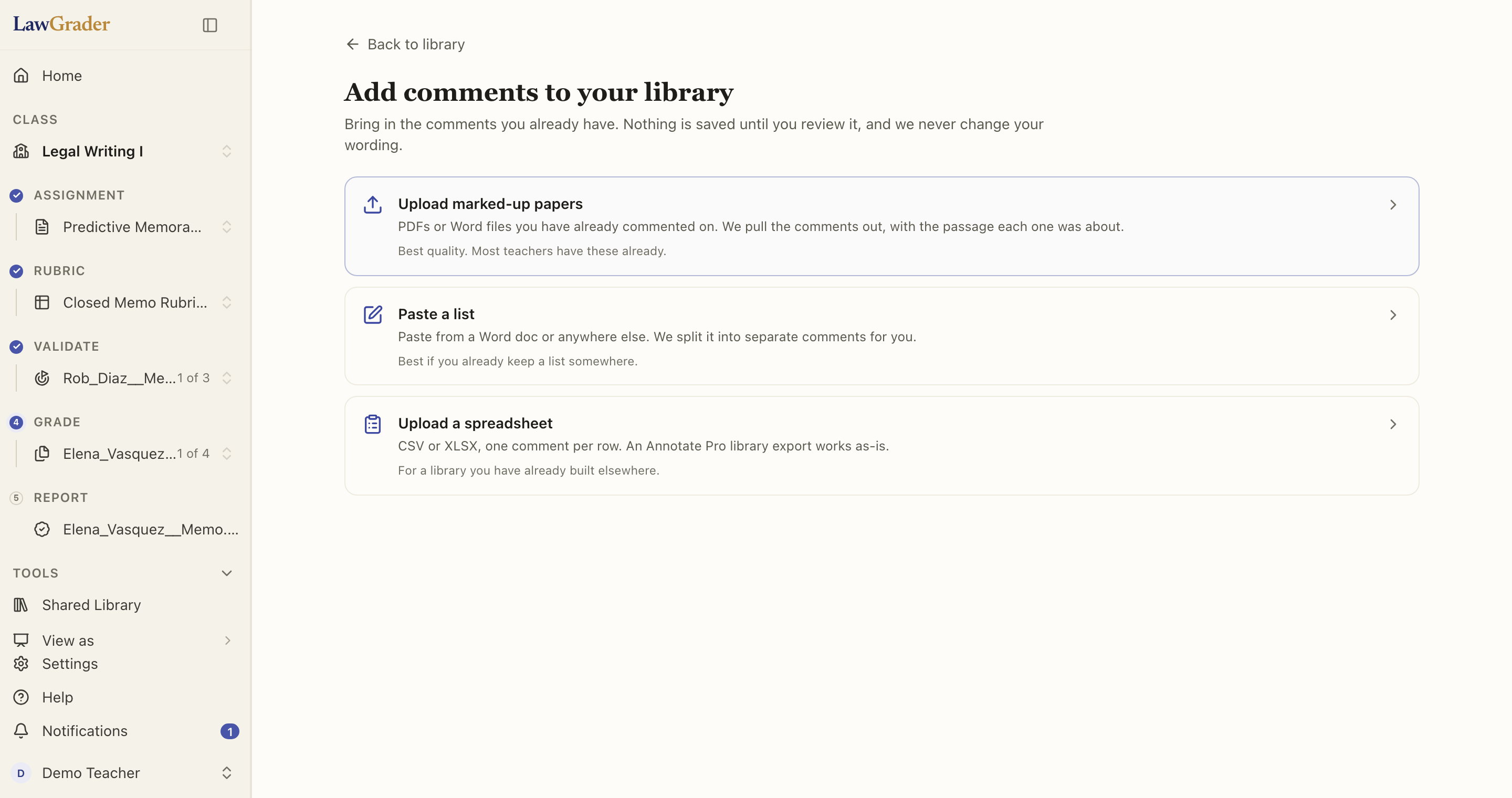
- Upload marked-up papers: PDFs or Word files you have already commented on. The comments are pulled out with the passage each one was about. Most teachers have a folder of these, and it is the best-quality source because it carries context.
- Paste a list: from a Word document or anywhere else. It is split into separate comments for you to check.
- Upload a spreadsheet: CSV or XLSX, one comment per row. An Annotate Pro library export works as it is.
After any of the three you see the comments it found, keep or drop each, and save. They join the library with no uses yet and start appearing in the picker and in suggestions immediately.
What the library is not
It is yours alone: never pooled with other teachers, never visible to students, never used to grade. A comment you remove from the library stays on any paper where you posted it. See How your students' data is handled.