Most criteria are judgments: the assistant reads the paper and places it on a level. Some are not. "Every source is cited in the required style", "no more than three missing citations", "a headline, a byline and a pull quote": these are things you check, one by one, and the score follows from what you found. A criterion scored by rules is built for those.
Setting one up
Open Set up criterion from the criterion's row in the rubric builder. Under Scored by, choose Rules instead of Look-fors. The header then shows two more choices:
- Type: Binary (a rule is met or not) or Count (a rule fires once per occurrence, each occurrence worth a rate, up to a cap).
- Direction: Add up (the student starts at zero and earns each rule's points) or Deduct (the student starts at full marks and each rule that fires takes points off, never below zero).
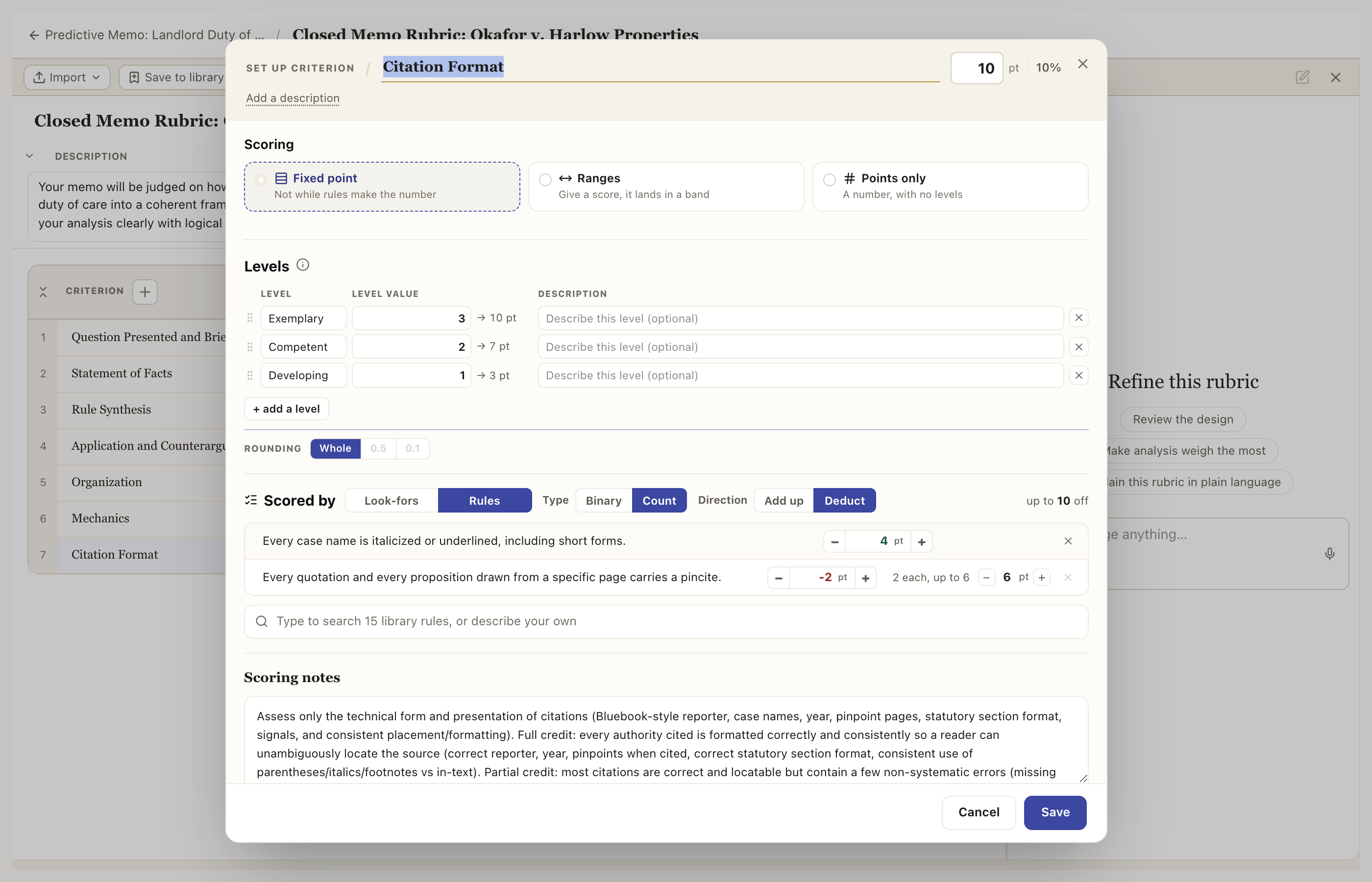
Each rule is a row: the check in plain words, and its worth. On a Count rule the worth is a rate with a cap ("2 each, up to 6"). The right edge totals what the list can move ("up to 10 off"). Type a rule in the box under the list, or pick one from the library of common checks.
Switching Type or Direction is a conversion, and the modal says what it will cost before you confirm: a Binary list turned into a Count list needs rates and caps, and a Deduct list turned into Add up flips every sign. Under a Fixed point, Ranges or Points only criterion, rules are optional and only adjust a score the criterion already has; under Rules scoring they are the score, so the criterion's worth is their sum (or, deducting, the base they take from). See Building a rubric for the rest of the modal.
What the grader does with it
On a rules-scored criterion the assistant does not pick a level. For each rule it returns a verdict, a one-line reason, and the passage it is looking at, quoted word for word. On a Count rule it returns each occurrence it found instead, each with its own quote and a line to the student, and the count is how many it listed. That is all it is asked for, so there is nothing to second-guess beyond "did this fire, and where".
What the rail shows
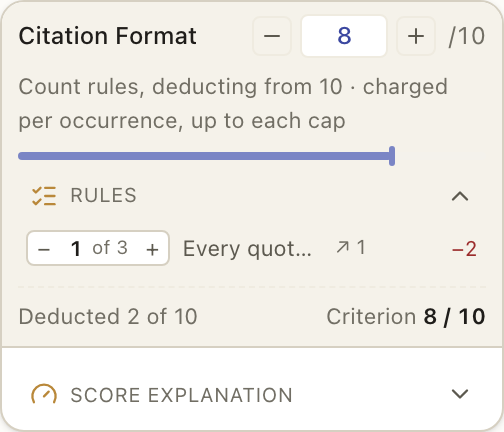
On the grade page the criterion's card opens a Rules drawer instead of a ladder, and the caption names your setup in the modal's own words: "Binary rules, adding up from 0 · tenths", or "Count rules, deducting from 10 · charged per occurrence, up to each cap".
- Each Binary rule is a row with a − and +. It moves in points, from 0 to its worth, by the criterion's rounding (whole points, halves or tenths, set in the modal).
- A Count rule's row reads its count, 3 of 4 · from comments, and turns red at its cap. It has no − and + of its own: each occurrence is a comment in the margin, and the count is read off them (see below).
- The mark beside a rule is read off its points: ✓ when it has all of them, ✗ when it has none, ~ in between. On a deducting rule, a rule that did not fire shows a dot, and − takes more off while + gives it back.
- The grader's verdict is where each rule starts: met is its full worth, missing is 0, and a partial starts at half, rounded. From there you set it wherever it belongs.
- Click a rule's text to go to its comment in the margin. A rule with no comment opens the grader's reason under the row instead.
- The foot states the arithmetic once: Deducted 2 of 10 · Criterion 8 / 10. The criterion's own header shows that score as a plain number; the rules are what move it.
- Change any rule and the criterion score follows. Your points win over the grader's; nothing is recomputed behind your back.
Rules in the margin
The comment the grader left for a Binary rule carries that rule's − and +, the same value as its row: change either and both move. Once you have changed it, the comment says what the grader proposed (AI: 0.3), and its label names the rule.
On a Count rule each occurrence is its own comment, at the passage it quotes, with its own − and + in points, from 0 up to the rule's rate. A minor slip can take less than the full rate; step one all the way to 0 and it dims and stops counting. Delete it and the rule counts one fewer. A Count rule with no occurrences says so under its row.
Your own comment on a rules criterion can be filed under one of its rules. Open the criterion label on the comment (or pick it while writing) and choose the rule. Under a Binary rule the comment then carries that rule's − and +. Under a Count rule it is a new occurrence: while you write it, its − and + start at the rule's rate, and saving it adds it to the count at the points shown. That is how you add one the grader missed: select the passage, comment on it, and file it under the rule. Clicking a rule on the rail goes to its comment. Filed under the criterion alone, the comment reads Note only: a note with no points, because on this criterion the rules are the score. A deduction no rule covers belongs in the rubric, as a new rule or an adjustment.
Where rules do not apply
Judgment criteria (argument quality, organization, voice) belong on levels, not rules; a checklist cannot see excellence, only compliance. A good rubric usually has both: a few rules-scored rows for the mechanical requirements, and levels for everything that takes reading.